
Managing Account Settings
To access the Studio account settings, open the Admin module in the primary navigation.
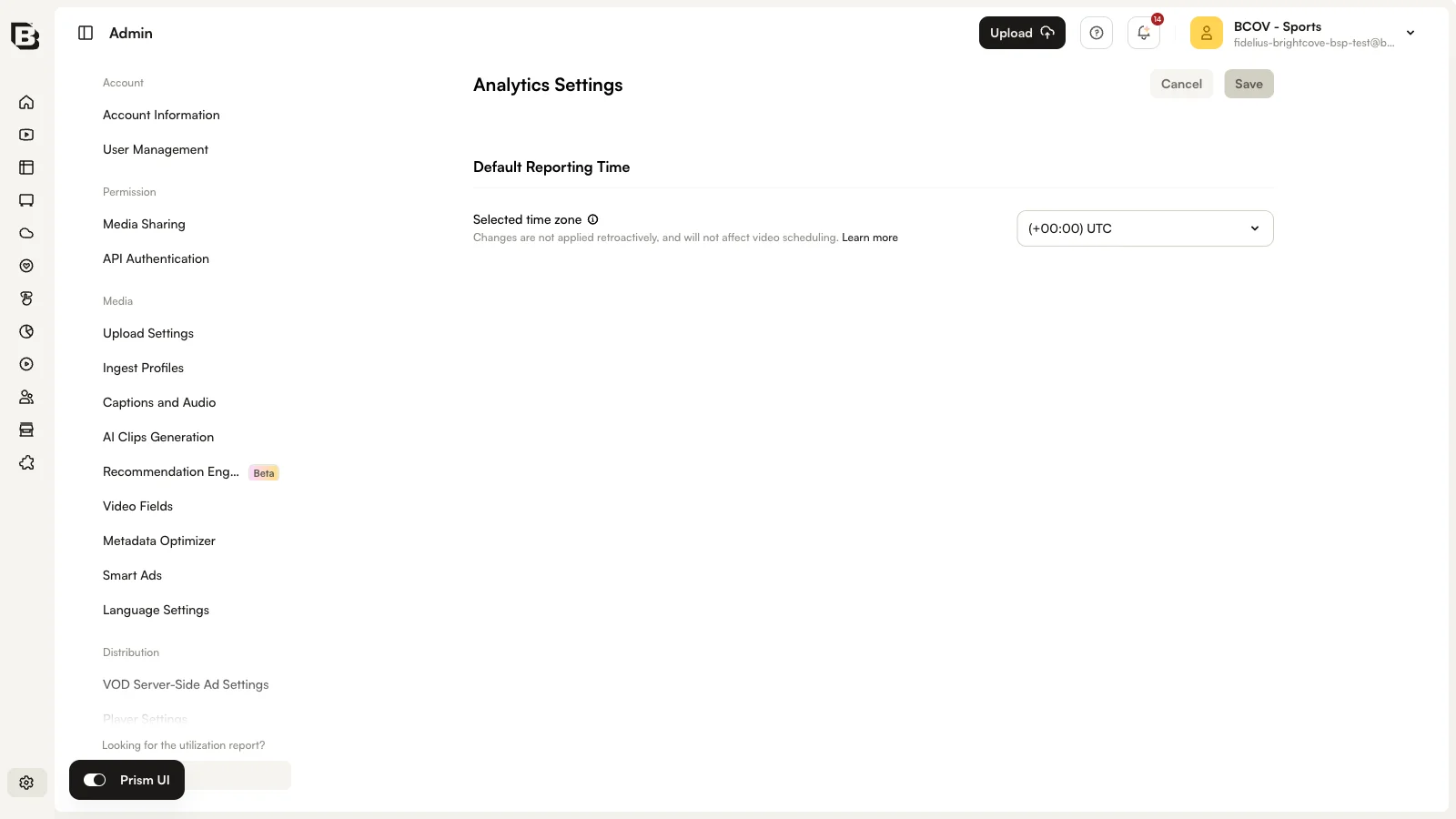
The sidebar groups settings into the following sections:
- Account — Account Information, User Management
- Permission — Media Sharing, API Authentication
- Media — Upload Settings, Ingest Profiles, Captions and Audio, AI Clips Generation, Recommendation Engine, Video Fields, Metadata Optimizer, Smart Ads, Language Settings
- Distribution — VOD Server-Side Ad Settings, Player Settings, NextGen Live Settings
- Other — Analytics Settings, Playback Rights
- Integrations — Integrations
- Billing — Billing (linked from the bottom of the sidebar)
Account Information
The Account Information option lets you review and edit the account name and mailing address, and (where enabled) clone accounts. For more information, see Managing Account Information.
User Management
The User Management option lets you manage the users authorized to use Studio. For more information, see Managing Users.
Media Sharing
The Media Sharing option lets you upload videos once and share them with affiliated accounts. For more information, see Managing Media Sharing Settings.
API Authentication
The API Authentication option lets you create and manage API credentials. For more information, see Managing API Authentication Credentials.
Upload Settings
Upload Settings control how videos are uploaded into your account, including:
- Default to Inactive — When checked, sets all uploaded videos to be inactive.
- Required Fields — Choose whether required fields must have values before activation, or before upload.
- Upload Additional Assets — When checked, allows poster and thumbnail images to be uploaded with videos.
- Default Image Dimensions — Default sizes for poster and thumbnail images. For more information, see Uploading Videos Using the Upload Module.
- Upload Queueing — Choose between concurrent uploads or one file at a time (recommended for large files).
Ingest Profiles
The Ingest Profiles option lets you manage the ingest profiles for your account. For more information, see Managing Ingest Profiles.
Video Fields
The Video Fields option lets you mark standard video fields as required and create custom metadata fields for your account. For more information, see Creating Custom Metadata Fields.
Language Settings
The Language Settings page is where you define a Primary Language and add additional metadata languages. For more information, see Configuring Language Settings.
VOD Server-Side Ad Settings
The VOD Server-Side Ad Settings let you manage VOD server-side ad configurations. For more information, see Configuring Server-Side Ad Settings.
Player Settings
The Player Settings page provides:
- Basic Authentication — Option to use username/password authentication for the Player Management and Delivery System APIs. If not enabled, API authentication must be used.
- Player Mapping — Lets you create player mappings for the Directed Migration Tool, which loads a Brightcove Player in place of a Smart Player.
NextGen Live Settings
The NextGen Live Settings page lets you manage settings for Brightcove Live. For more information, see Managing Live Settings.
Analytics Settings
The Analytics Settings page lets you set the Default Reporting Time Zone used to calculate day boundaries for reporting data. Changes are not applied retroactively, so you may see a flat spot or a spike at day boundaries when the change takes effect.
Playback Rights
The Playback Rights page lets you create and manage playback restrictions. For more information, see Managing Playback Rights.
Integrations
The Integrations page lets you connect Studio with services like Zoom for Brightcove Live broadcasts. For more information, see Integrating a Zoom meeting into Brightcove Live.
Billing
The Billing link at the bottom of the Admin sidebar opens the billing page for the account. For more information, see Viewing Billing Information.