
Media module search
Overview
Media module search brings significant improvements to how you can search for and manage your video content.
Key features include:
- Relevance-based sorting for search-bar queries
- Support for minor misspellings in search terms
- Highlighted keyword matches in the results
- Bulk search for up to 100 Video IDs or 50 Reference IDs (RefIDs)
- Filter panel with a searchable list of filters and inclusion/exclusion toggles
- Ability to save filter views as custom filters for quick reuse
Layout
You can find all the search functionality directly from the Media module.
- Search bar: Run free-text searches using the search bar.

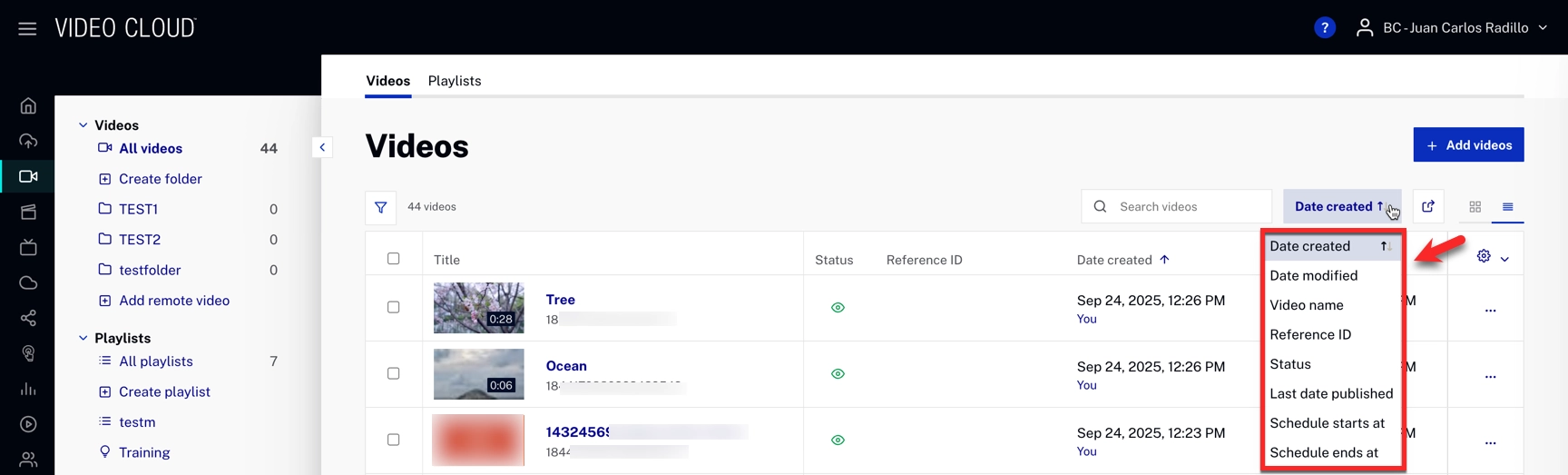
- Sorting panel: Open the sorting panel to order your results by a certain attribute.
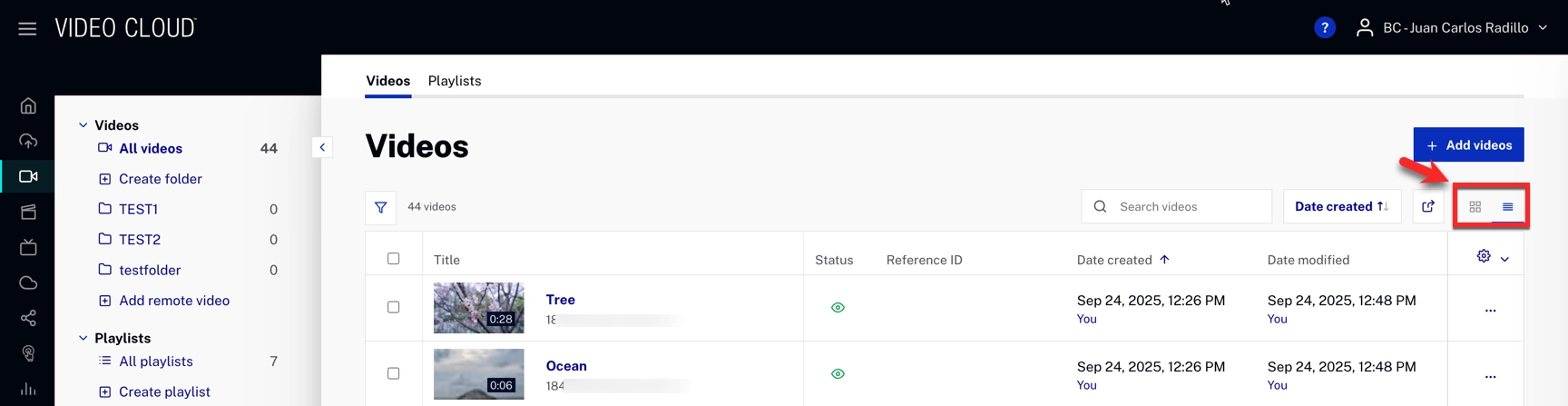
Content Management: List and Card Views
Our platform includes two distinct views, which you can switch between for exploring and managing your resources:
- List View: Displays your resources in a detailed table format, providing a comprehensive view of information.
- Card View: Shows your resources in a card format, providing a more visual and organized layout.
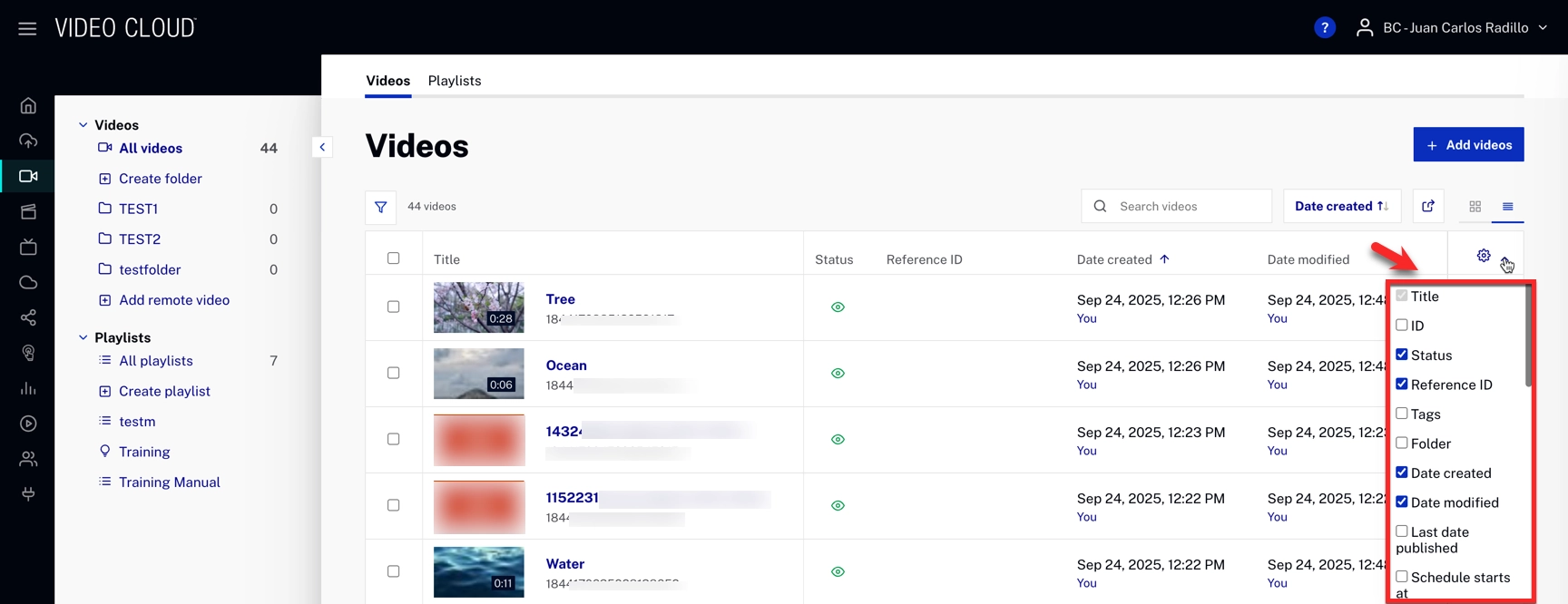
List View summary
- Filter Results: Filter results by selecting various features from the filter menu.
Card View summary
- Sort Results: Sort results by a certain attribute in both ascending and descending order.
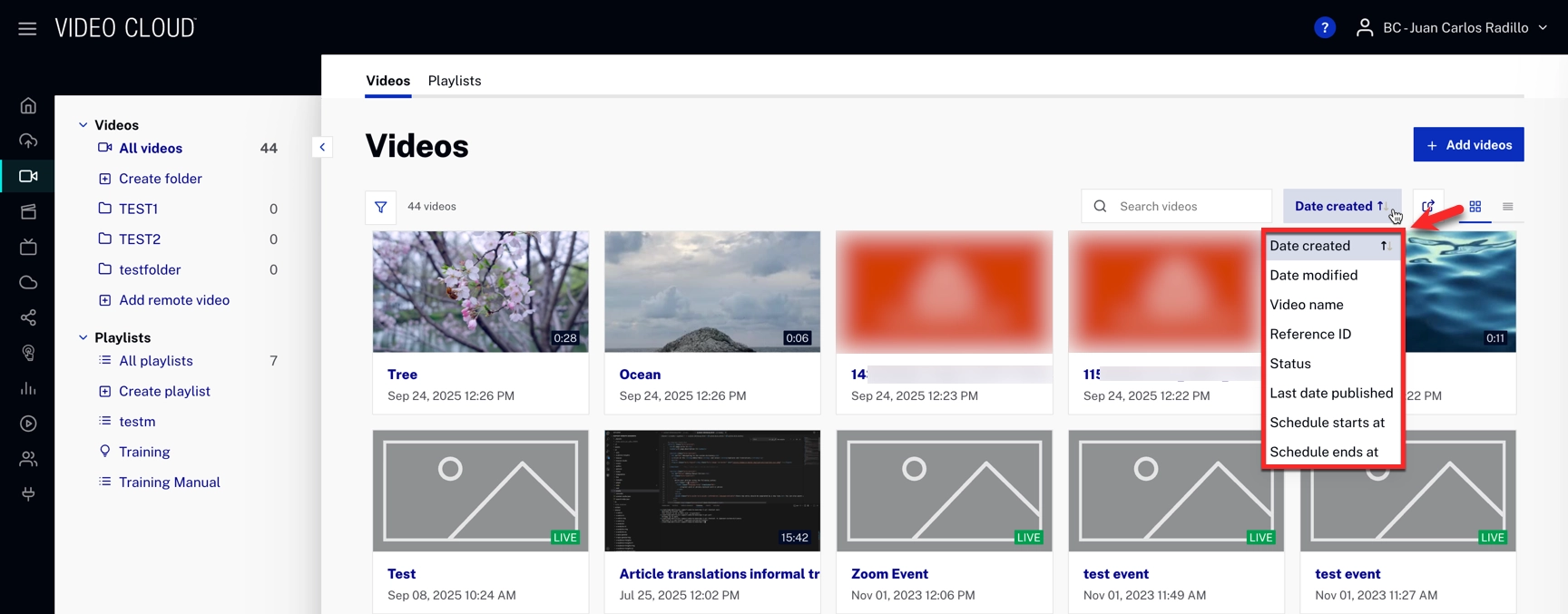
- Larger Thumbnails: Thumbnails are now larger, making it easier to identify videos at a glance.
- Visible Card Details: Each tile shows the video thumbnail, title, modified date, duration badge, and owner indicator. A three-dot menu on the tile opens the quick actions.
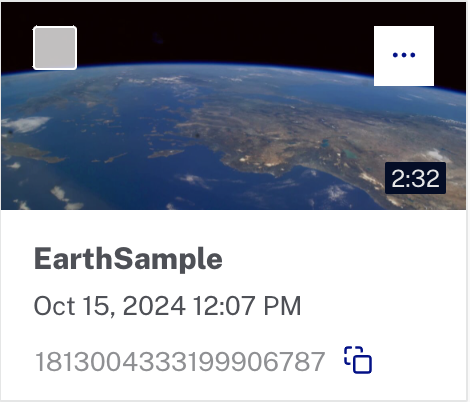
Search options in the Media module
Media module search includes several advanced options to refine search results effectively.
There are two search methods available that can be used independently or together for more precise results:
- Search bar: For quick, free-text searches across key video fields.
-
This includes:
- Partial Matches: Results match any part of the entered string in Name or ID.
- Example: Typing est will return videos with test or festival in their names.
- Keyboard Trigger: Searches initiate upon keyboard entry after the 3rd character.
- Search filters: For advanced searches using one or more structured filters.
Search bar
Searched fields
The search bar queries the following metadata fields:
- Title
- ID
- Reference ID (RefID)
- Tags
- Short Description
- Long Description
- Custom fields
Search behavior
- When using the search bar, results automatically switch to Most relevant sorting, based on a similarity score between the entered terms and all searchable fields.
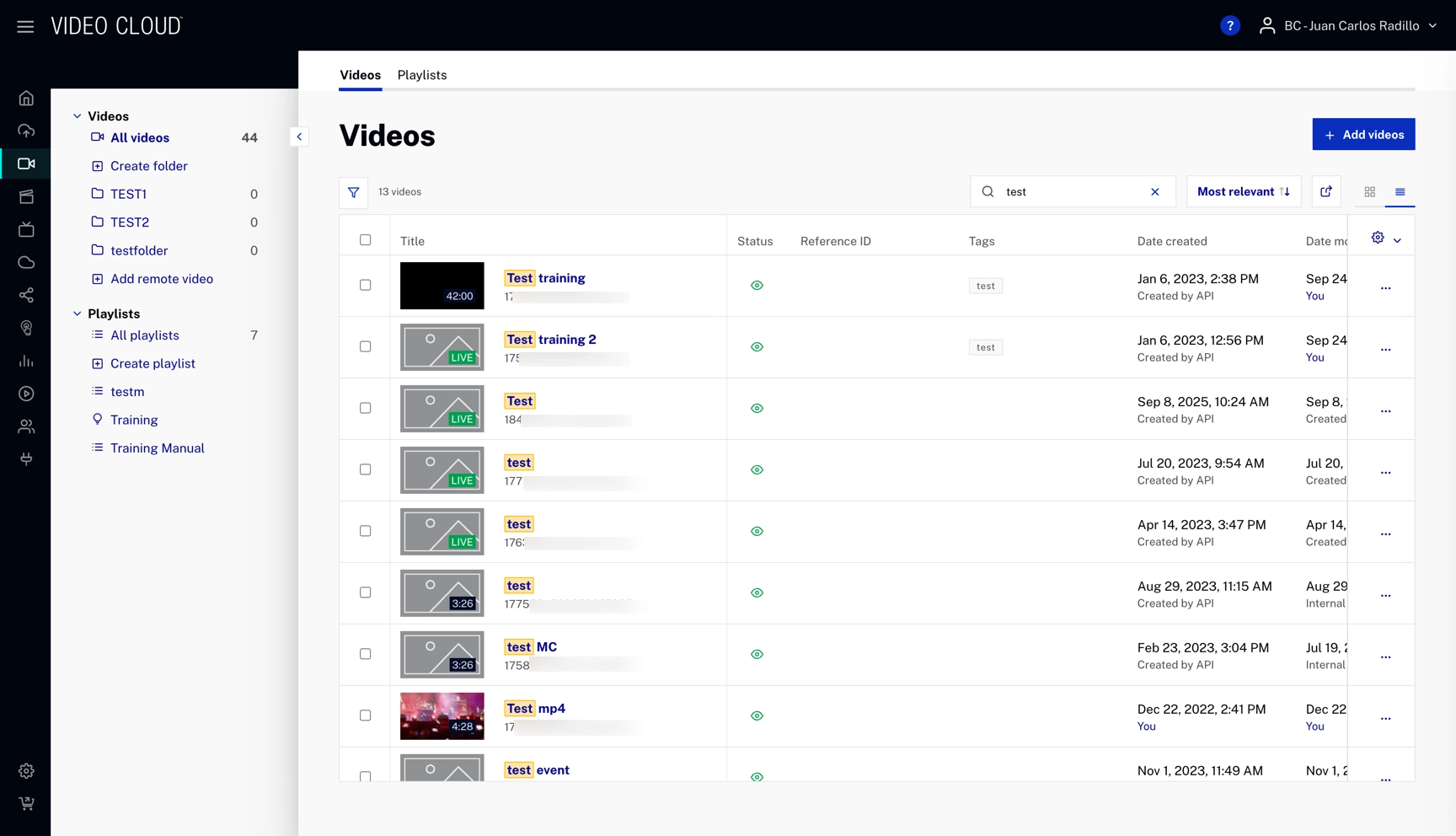
- After the sort order is changed, it remains in effect for your current Media module session until you leave or log out.
- The search engine supports minor misspellings, returning the closest matching results.
- Whenever a search term matches a word in the Title, ID, or other searchable fields, the matched text is highlighted (for example, in yellow) to improve visibility.
Search Parameters (Filters)
The search functionality through filters in Video Cloud allows for the combination of multiple filters to refine search results effectively. This comprehensive filtering capability ensures that you can pinpoint the exact content you need with precision.
Below is a table with the available search parameters:
| Search Parameter | Match Type | Description |
|---|---|---|
| Tags | Exact Match | Includes or excludes specific tags |
| Name | Exact Match | Includes or excludes specific names (supports stemming) |
| ID | Exact Match | Includes or excludes specific IDs |
| Reference ID | Exact Match | Includes or excludes specific reference IDs |
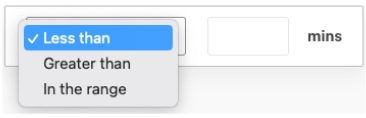
| Duration | Range | Filters by duration (less than, greater than, or in a specific range) |
| Playable | Boolean | Filters by playable or not playable status |
| Short/Long Description | Exact Match | Includes or excludes specific descriptions (supports stemming) |
| Date Created | Date Range | Filters by date ranges |
| Date Modified | Date Range | Filters by date ranges |
| Schedule Start/End | Date Range | Filters by date ranges |
| Custom Field - Text | Exact Match | Includes or excludes specific text in custom fields (supports stemming) |
| Custom Field - List | List | Includes or excludes specific list items |
| Expanded Search Filters | ||
| Created By | Exact Match | Filters by creator's email |
| Updated By | Exact Match | Filters by updater's email |
| Status | Boolean | Filters by active or inactive status |
| Folder | Exact Match | Includes or excludes videos from specific folders |
| Video Information | Exact Match | Includes or excludes specific video information fields |
| Schedule Ends At | Date Range | Filters by video schedule end dates |
| Schedule Starts At | Date Range | Filters by video schedule start dates |
| Plays Total | Range | Filters by total number of plays |
| Plays Last Week | Range | Filters by number of plays within the last week |
| Activation Date | Date Range | Filters by activation date ranges |
| Ingestion Profile ID | Exact Match | Includes or excludes specific ingestion profile IDs |
| Delivery Type | Exact Match | Includes or excludes specific delivery types (Dynamic, Live, Remote, etc.) |
Search Filters
The following search filters can be applied individually or together to refine search results:
-
String: Text-based search.
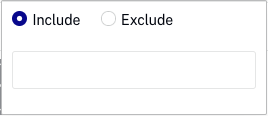
-
Tag: Filter by specific tags.
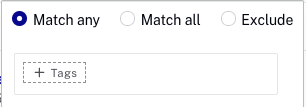
-
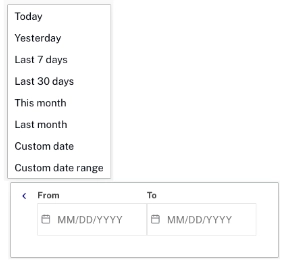
Date: Filter by date.
-
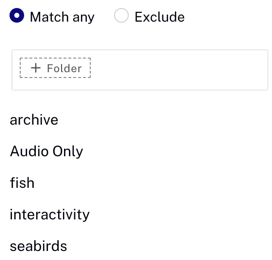
Folder: Filter videos based on folder membership.
-
Video Information: Filter by specific attributes.

-
Duration: Filter by video duration.
-
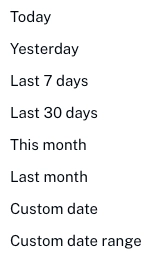
Schedule starts at - Schedule ends at: Filter by a date or range of dates when the video schedule begins or when the video schedule ends.
-
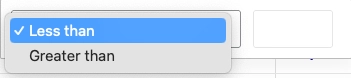
Plays total: Filter by the number of video plays.
-
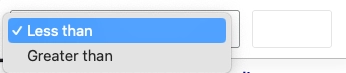
Plays last week: Filter by the number of plays a video received in the past week.
-
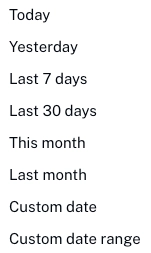
Activation date: Filter by a date or range of dates when the video was activated.
-
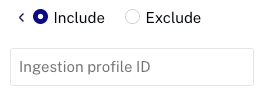
Ingestion: Filter videos by their Ingestion Profile ID.
-
Delivery type: Filter videos by their delivery method.
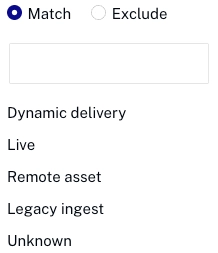
Logic and Appearance
-
AND Logic: The logic between each filter is an AND operation, meaning all conditions must be met.
-
Color Coding: Excludes are shown in a different color/state.
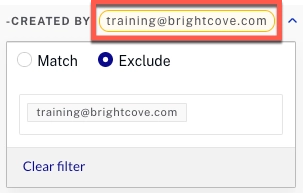
-
Quick Identification: As the number of filters grows, a search to quickly identify the Search Options is available.
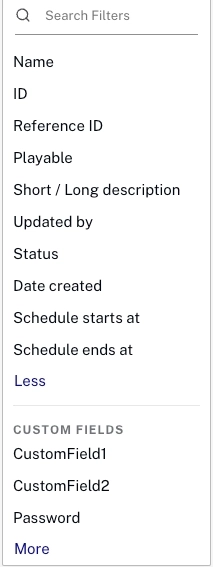
Saving filters
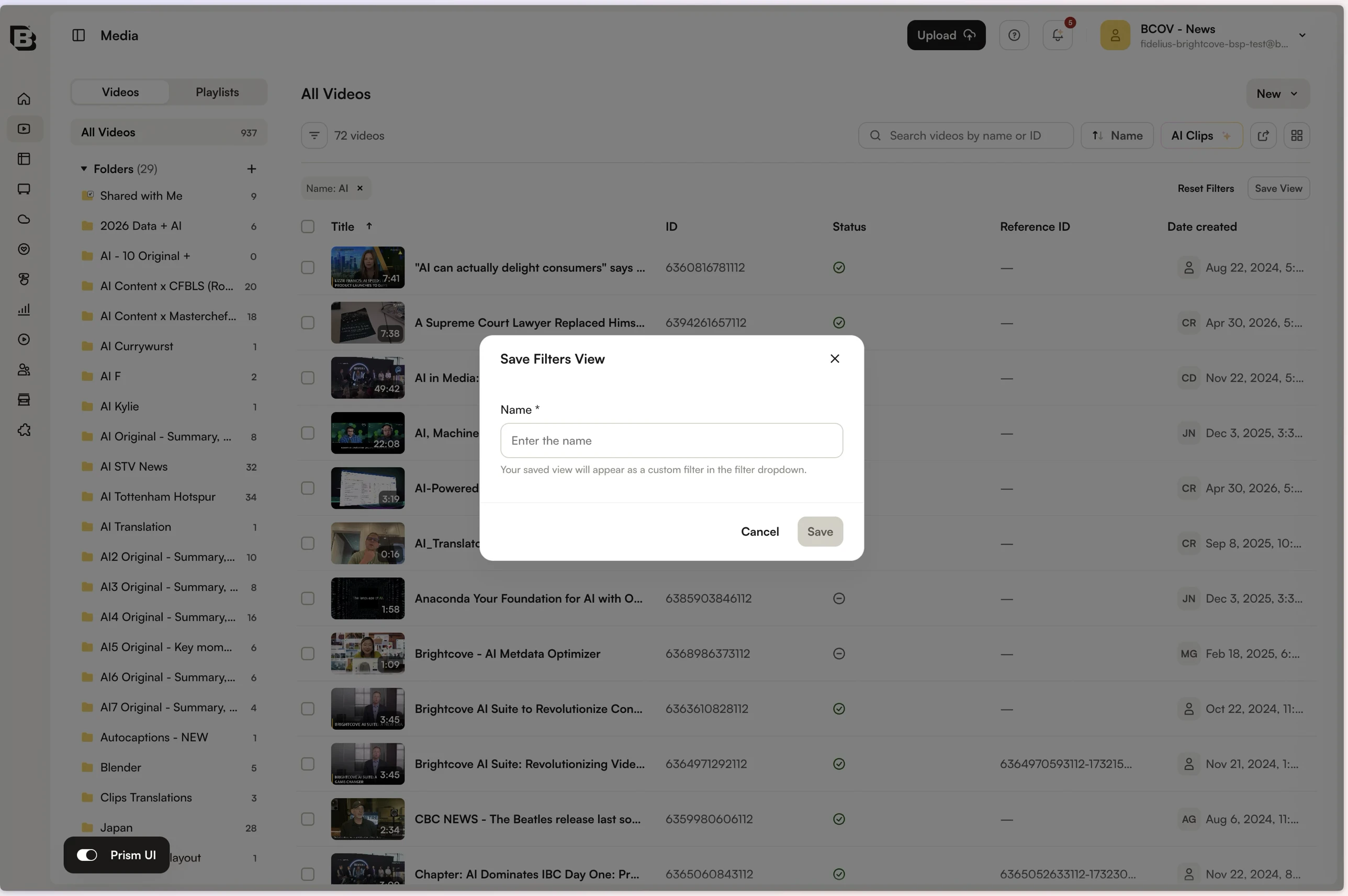
After you apply one or more filters, a Reset Filters | Save View row appears above the results table. Click Save View to store the current filter combination as a custom view.
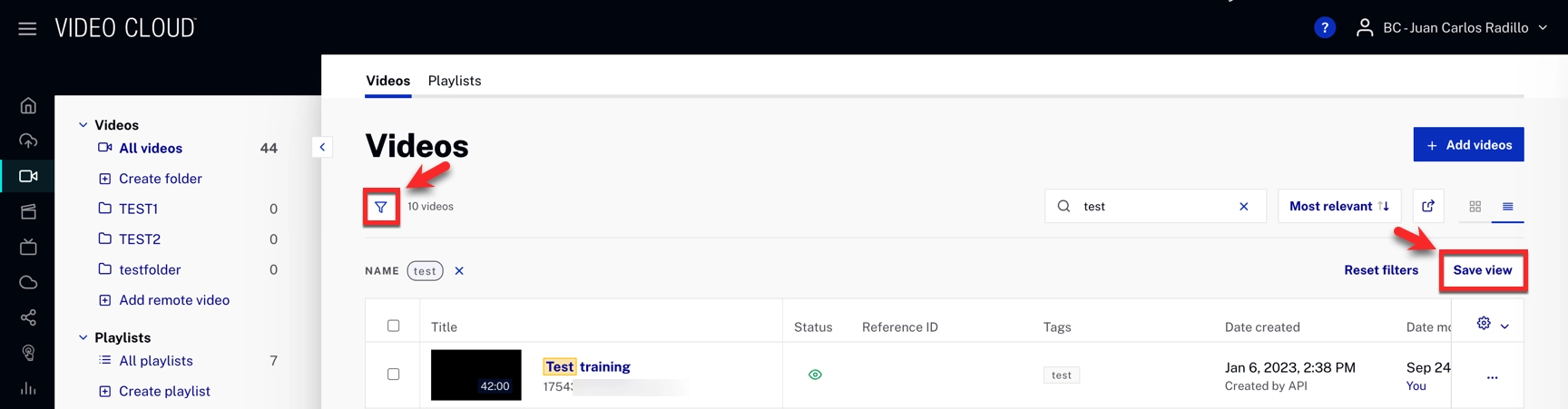
In the Save Filters View dialog, enter a name and click Save. The saved view appears as a custom filter in the filter dropdown.
Quick actions
The quick actions menu provides easy access to commonly used video management tasks. Hover over a video row and click the three-dot menu on the right side to open it.
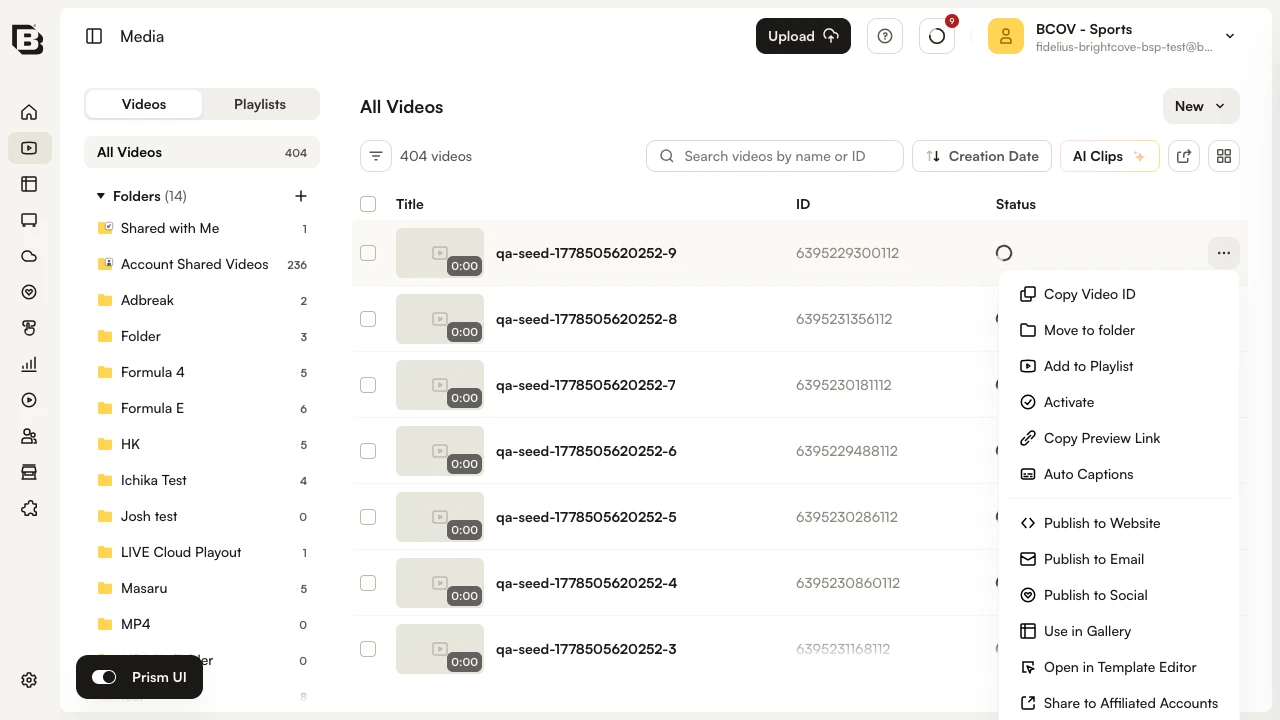
Copy Video ID
Copies the unique Video ID of the selected video to your clipboard.
Move to folder
Moves the video into one of the folders in your account.
Add to Playlist
Adds the video to one or more manual playlists.
Activate
Toggles the video's active state. Active videos can be delivered to viewers; inactive videos are hidden from playback.
Copy Preview Link
Copies a shareable preview URL for the video to your clipboard.
Auto Captions
Opens the captions and audio workflow for the video.
Publish to Website
Generates an embed code or URL for integrating the video into a web page.
Publish to Email
Creates a clickable video thumbnail or link that recipients can use to open the video in a browser tab.
Publish to Social
Opens Brightcove Social so you can publish the video to integrated social media platforms such as Facebook, YouTube, and X.
Use in Gallery
Embeds the video into a Brightcove Gallery in-page experience.
Open in Template Editor
Opens the Template Editor with the selected video so you can build or update a video experience.
Share to Affiliated Accounts
Shares the video with any affiliated accounts configured for media sharing.
Delete
Permanently deletes the selected video from the account.
For more advanced search options, see the CMS API: Video Search v2 documentation.