
Adding Transcripts to Videos using the Media Module
Adding a transcript file
Transcript files can be uploaded using the Media module. To upload a transcript for a video, follow these steps:
- Open the Media module.
- Click the link for the video you want to edit.
- In the right-side navigation, click Languages.
- At the top of the panel, click the title dropdown and select Transcripts.
- Click New and choose how to add the transcript:
- Browse Files — Select the transcript file from your computer. The file will be uploaded to .
- Upload from URL — Enter the public URL where the transcript file resides. The file will be uploaded to .
- Auto-Captions — Generate a transcript automatically from the video’s audio.
- In the Add Transcript dialog, complete the fields:
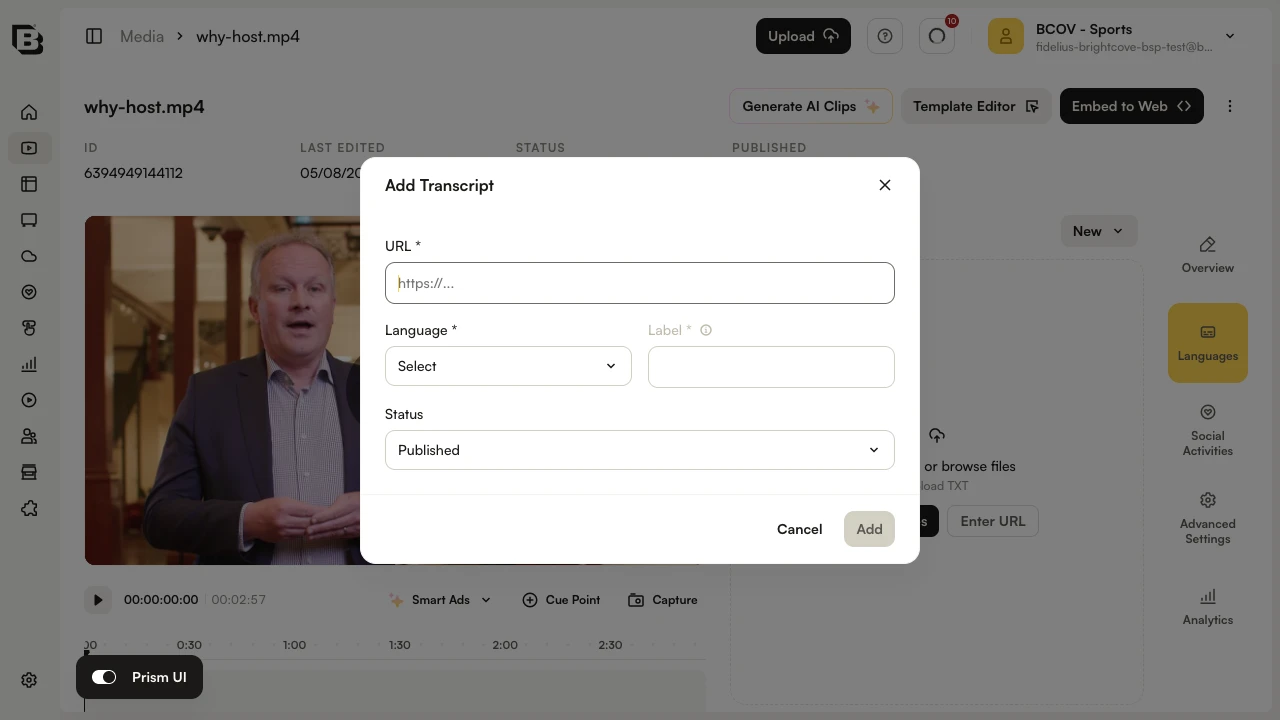
- Select the Language of the transcript data.
- The Label is filled in automatically based on the language, but you can edit it as needed.
- Select a Status:
- Published — Transcript will appear on the Playback API for the video.
- Draft — Transcript will not appear on the Playback API for the video.
- Click Add to save the transcript information.
Editing transcript details
The Media module provides the option to edit transcript details. To edit transcript details, follow these steps.
- Open the Media module.
- Click the link for the video you want to edit.
- In the right-side navigation, click Languages and switch the title dropdown to Transcripts.
- On the transcript row, click the overflow menu (
 ) and select Edit Transcript Details.
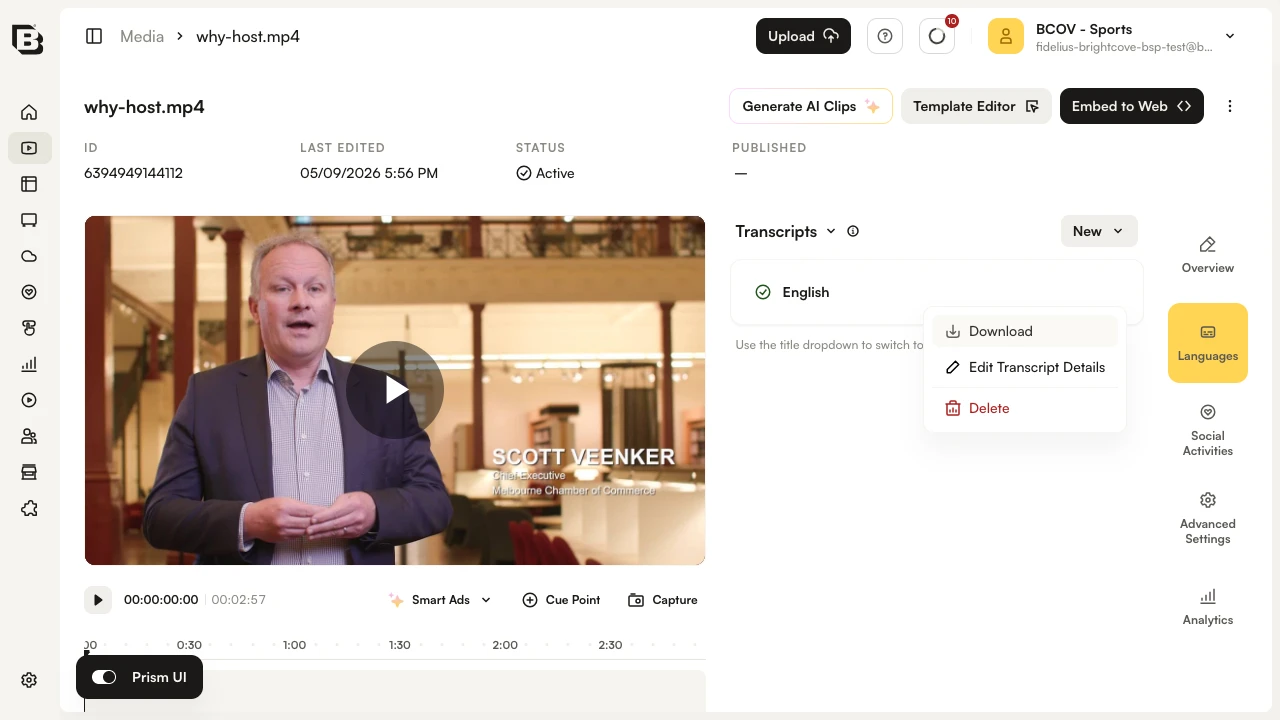
- Edit the transcript details as needed.
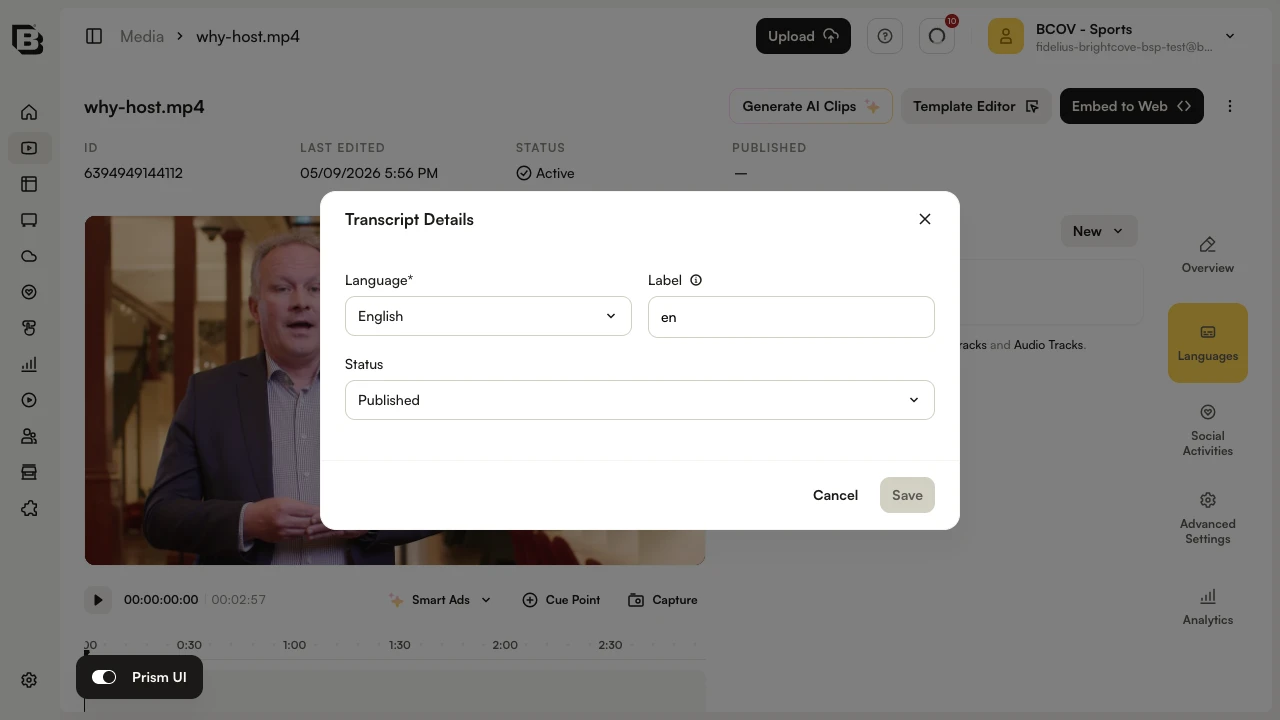
- Click Save.
Downloading transcript files
The Media module provides the ability to download transcript files. To download a transcript file, follow these steps.
- Open the Media module.
- Click the link for the video you want to edit.
- In the right-side navigation, click Languages and switch the title dropdown to Transcripts.
- On the transcript row, click the overflow menu () and select Download.
Deleting transcript files
The Media module provides the option to delete transcripts. To delete a transcript, follow these steps.
- Open the Media module.
- Click the link for the video you want to edit.
- In the right-side navigation, click Languages and switch the title dropdown to Transcripts.
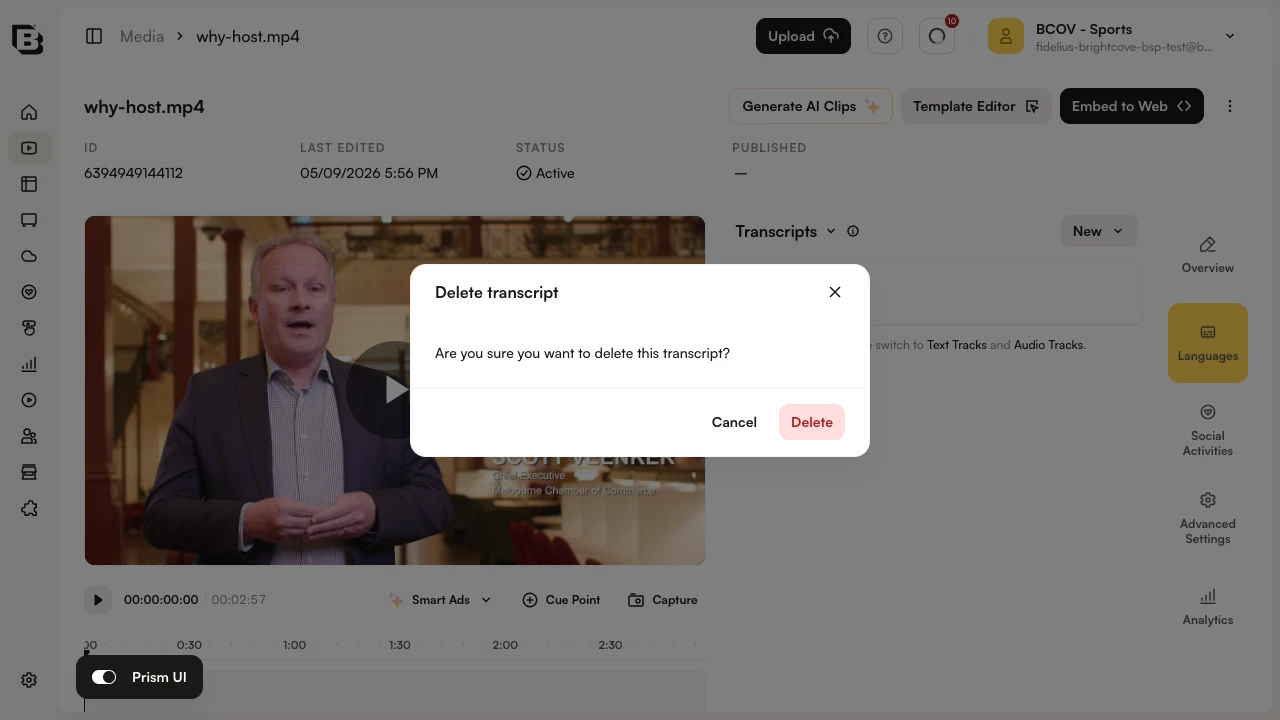
- On the transcript row, click the overflow menu () and select Delete.
- In the Delete transcript dialog, click Delete to confirm.
Limitations
- There is no current transcript experience in the Brightcove Player.
- Formats other than .txt on upload in the Media Module are not supported.
- If you are using auto-captioning, the JSON transcript will display in the list, however there is no current ability to edit the contents of the transcript.
- Remote transcripts are not initially supported.
- Uploading a transcript for shared assets is not supported.