
Working with Multi-Lingual Metadata
To view and edit the properties for a video, open the Media module and click the video title link. The video details page will open.
When the video details page opens, the video metadata will be displayed using the primary language. The Full view language selector appears above the Information section and shows the primary language. The language tag (for example, EN or JA) on each section header indicates which language variant is currently being edited.
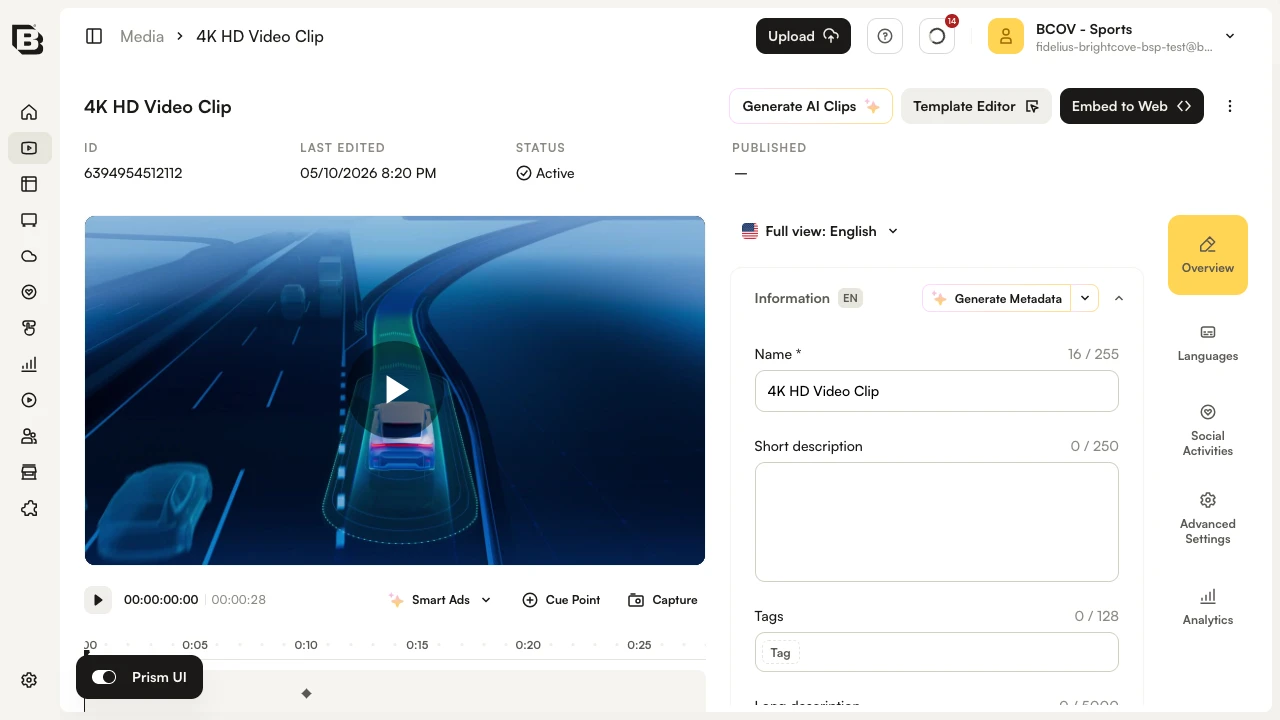
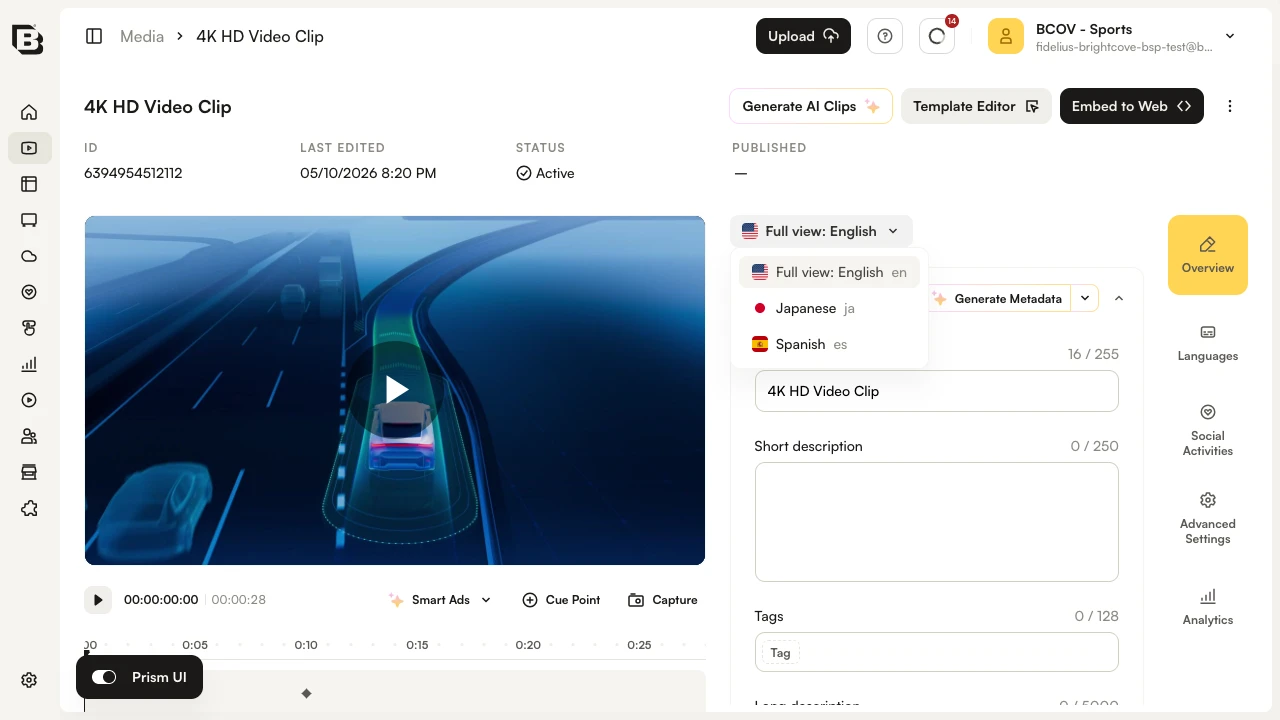
Click the Full view button to select another language. In this example, English was configured as the primary language and Japanese and Spanish were added as additional languages. A red dot next to a language indicates that required fields for that language are missing.
Adding multi-lingual metadata
To add multi-lingual metadata to a video, use the Full view language selector to switch to the language you want to add metadata for.
The video properties will update and the section header tags will switch to the selected language code (for example, JA for Japanese).
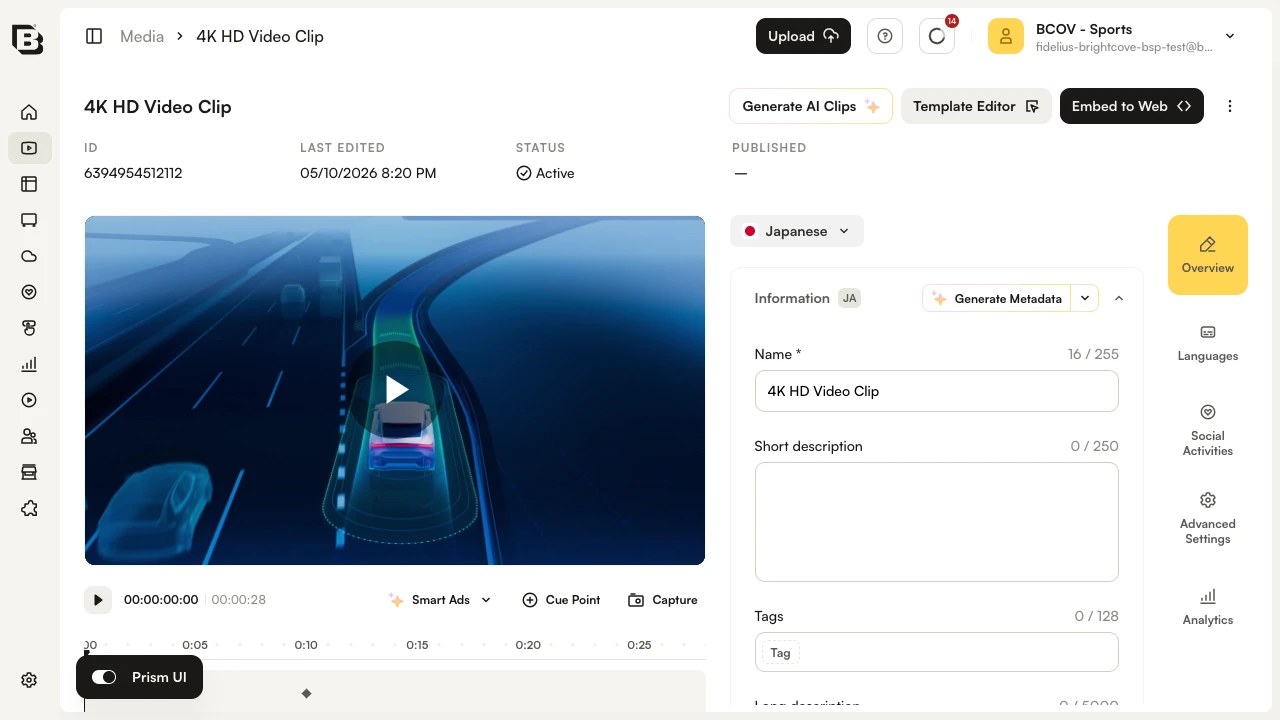
To edit the video properties, click Edit in the section or double-click in the section. Enter the localized value(s) and then click Save.
The following video property sections support multi-lingual metadata:
- Video Information
- Audio Tracks
- Images
- Custom Fields
- Text Tracks
Required fields
In order to save changes, all required fields for the primary language must have values. If required fields are missing for any of the additional languages, a message will be displayed but changes can be saved.