Editing Video Properties using the Media Module
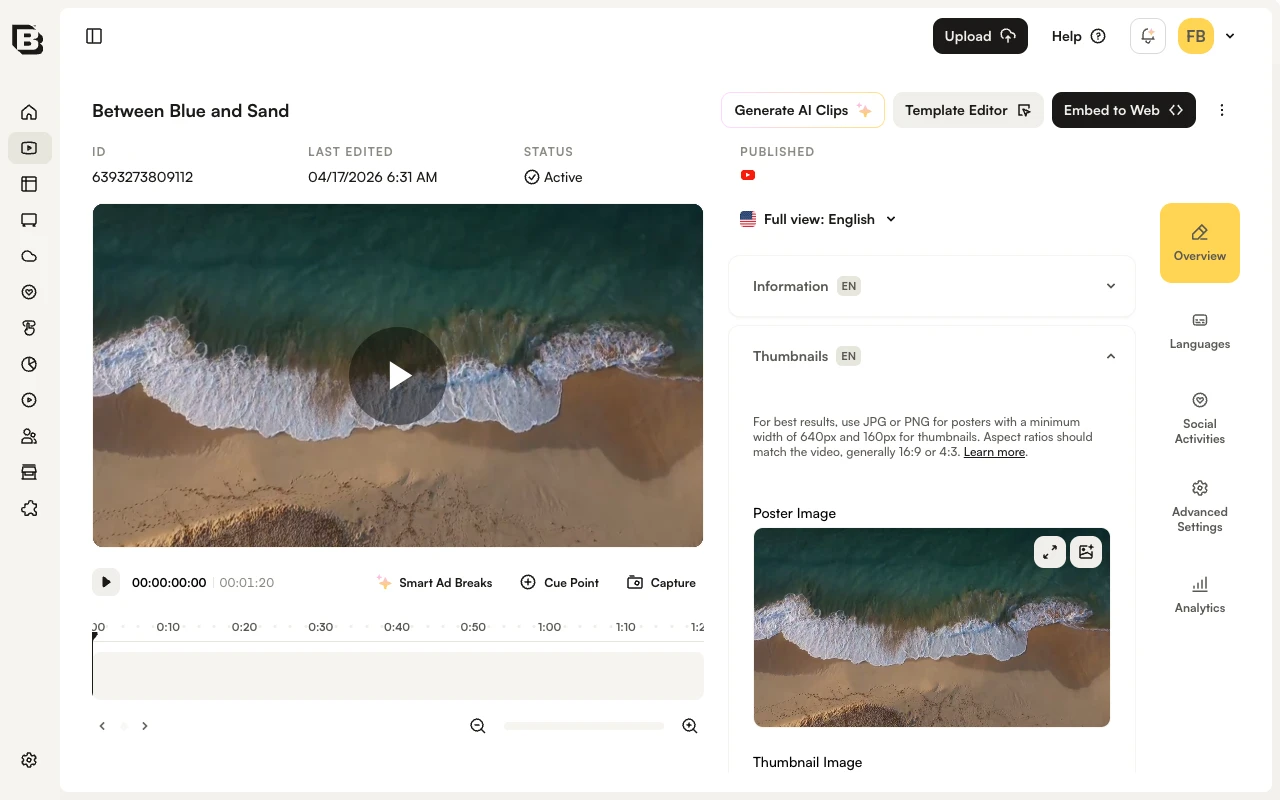
To view and edit the details for a video, open the Media module and click a video title to open the video details page.
Buttons at the top of the video details page provide the ability to:
- Generate AI Clips - Open the AI clip-generation workflow
- Template Editor - Open the video in the Brightcove Video Editor
- Embed to Web - Get the embed code or URL to publish the video
- More actions (three-dot menu) - Move to folder, Add to playlist, copy Video ID or URL, Deactivate, Download, Publish to Email, Delete
If the video is activated, open More actions and click Deactivate to deactivate it. If the video is deactivated, Activate appears in the same menu. Videos that are deactivated cannot be played in a Brightcove Player.
The preview player shows the video with a timeline for cue points. Use Cue Point and Capture below the timeline to add a cue point at the current playhead or capture a poster/thumbnail from the current frame.
A vertical side navigation on the right groups the video details into the following tabs:
- Overview - Default tab. Contains stacked accordion sections for
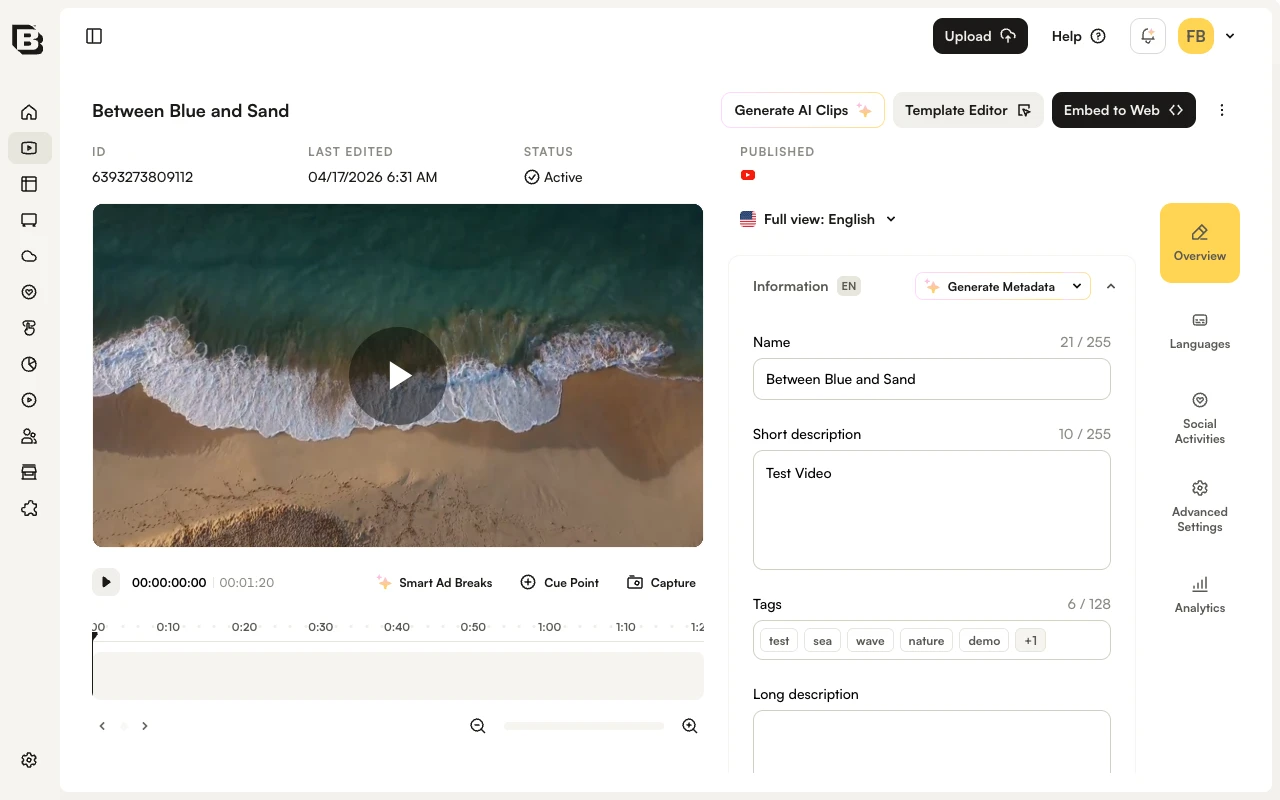
- Information (name, descriptions, tags, reference ID, folder, and related metadata)
- Thumbnails (poster and thumbnail images)
- Video Files
- Custom Fields
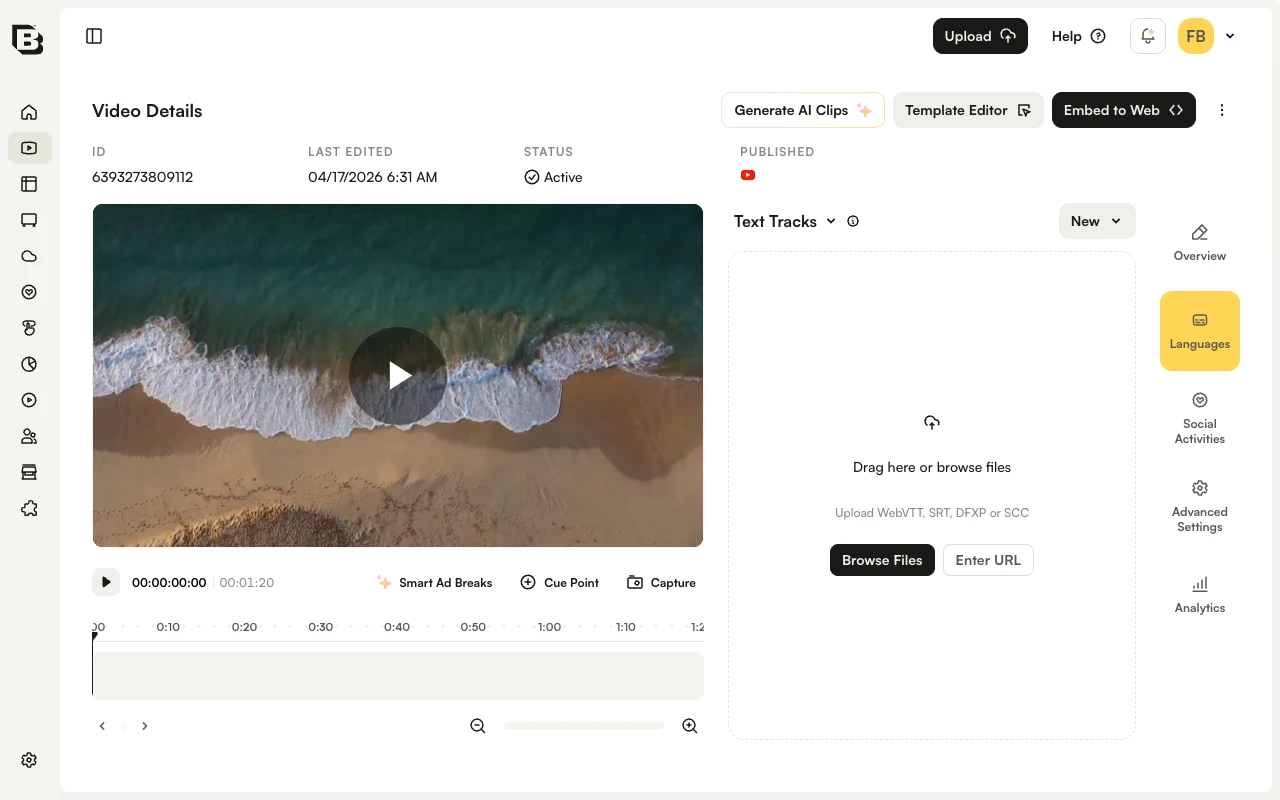
- Languages - Text Tracks and Audio Tracks (switch between them using the dropdown at the top of the tab)
- Social Activities - Social sharing history
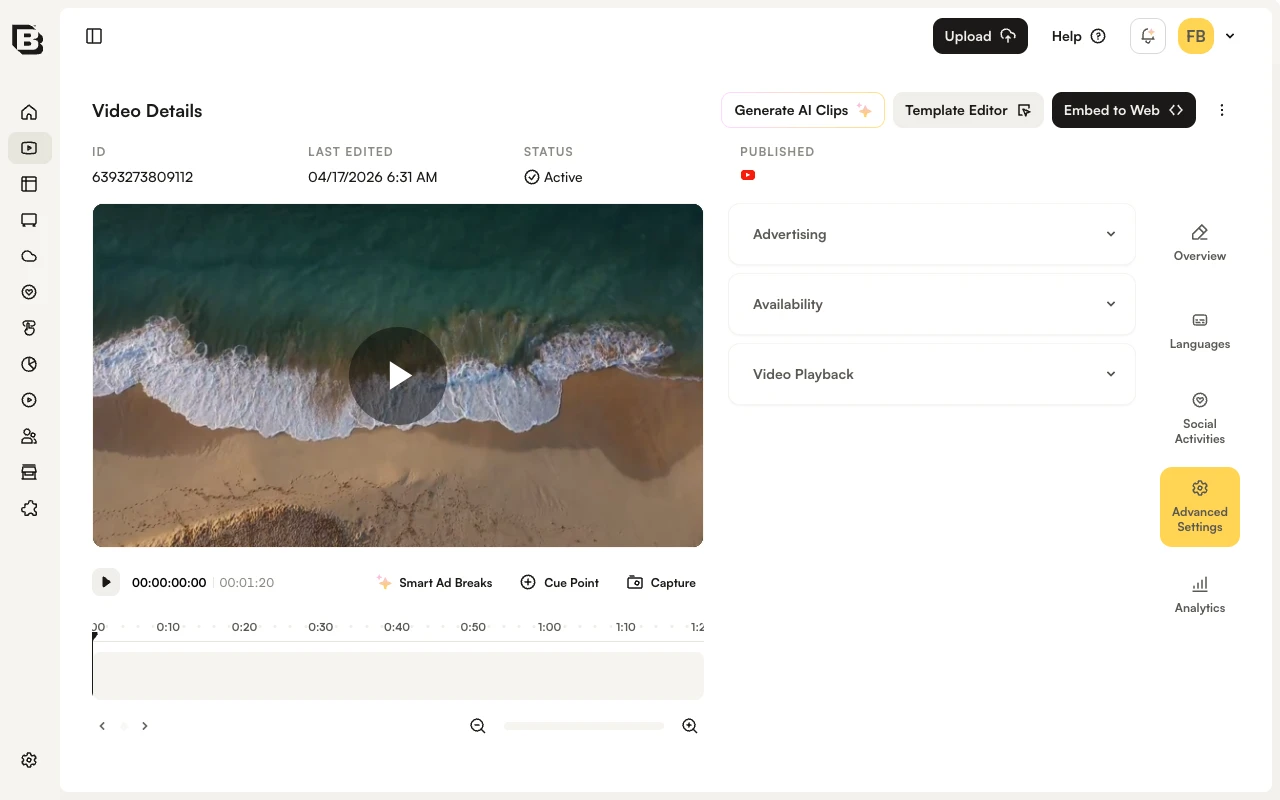
- Advanced Settings - accordion sections for Advertising, Availability, and Video Playback
- Analytics - Analytics for this video
To edit fields in a section, expand it from the accordion header and update the values. Changes are saved automatically when you leave the field; a Save button appears where required.
Required fields
Your Brightcove account may be configured with required metadata fields. If a video is inactive, you can freely edit and save its metadata without supplying all required metadata. Videos cannot be activated until all required metadata has been entered. If a video is already active, you cannot save edits in the section you are editing unless you supply all required metadata in that section or deactivate the video. For more information, see Setting Required Fields for Videos.
Information
The Information section on the Overview tab contains the core video metadata. The following fields can be edited:
- Name - No more than 255 characters
- ID - System-assigned video ID (unique across all Brightcove accounts)
- Short description - No more than 250 characters
- Tags - One or more tags, separated by commas; used to add videos to smart playlists
- Tags can be up to 128 characters. If any tag has more than 128 characters, an error will be displayed when you attempt to save changes.
- Tags cannot contain commas. For example, a tag of "roof, attic + front yard" is not supported.
- A video can have no more than a total of 1200 tags
- A tag differing only in case (lowercase, uppercase) is handled as an identical tag; the case will automatically match the original
- Issues with case sensitivity need to be handled externally to Brightcove , for example, using JavaScript methods to modify the strings
- After entering a tag, press the comma key or Enter. Added tags appear in a colored chip.
- Reference ID - A unique ID assigned by a publisher to a video or playlist. Limited to 150 characters. The reference ID is distinct from the video ID (which is generated by Brightcove). Reference IDs must always be unique. Deleting a video allows a previously assigned reference ID to be reused.
- Video is 360° Projection (under Advanced Settings > Video Playback) - Enable this to indicate the video is a 360 degree video. A 360 badge will appear in the video thumbnail. For more information, see Working with 360° Videos.
- Enable offline playback - Enables the video to be saved locally and viewed offline when using applications created with the device SDKs. Only appears if the account is enabled for offline playback.
- Related Link URL - A standard web URL beginning with https:// limited to 255 characters
- Related Link Text - Related link text limited to 255 characters
- Long Description - No more than 5000 characters
- Advertising
- Free - Ads will not be shown when the video plays
- Ad Supported - Ads may be shown when the video plays
- Ad Keys - Passed as part of the ad server URL. For example, to pass
section=blogandanotherKey=value1, entersection=blog&anotherKey=value1. See the Google Ad Manager for information on adding key-value pairs. When using ad keys, ad macros should be added to the ad server URL (configured as part of the player advertising properties). Ad macros support variables in the server URL that the IMA3 plugin substitutes with appropriate values. For more information, see the IMA3 developer documentation. - Sharing - Indicates whether the video has been shared to another account. For more information, see Sharing Videos to Other Accounts.
Video Type
When the account is enabled for the Video Type feature (for example, Beacon or CorpTV accounts), the Video Type section provides additional video details based upon the type selected:
- Movie - Indicates the video is a movie. When a new video is uploaded, the Video Type defaults to Movie.
- Episode - Indicates the video is an episode in a season. The Video Type section displays the episode number and the season the video is assigned to.
- Trailer - Indicates the video is a trailer. Videos added as a trailer for a movie or episode automatically have their Video Type changed to Trailer.
If the Video Type is Movie or Episode, additional fields may be configured:
- Trailer - Click Add Trailer to select a trailer for the movie or episode
- Age Ratings - Select age rating(s) for the listed countries
- Episode Number - Enter the episode number (Episodes only)
- Season - Season the episode has been associated with (Episodes only)
Cast
When enabled for the account, the Cast section can be used to add cast information for a video. All of the fields in the Cast section support type-ahead search. As you type, previous matching entries appear and can be selected to add them.
Categorization
When enabled for the account, the Categorization section can be used to configure the following details:
- Genres - The genres for the video
- Manual Playlists - Playlists that this video belongs to. For more information, see Creating and Managing Playlists.
- Folder - Folder the video is assigned to. See Organizing Videos Using Folders for more information.
Custom Fields
The Custom Fields section (on the Overview tab) can be used to view and edit custom fields for the video. An asterisk (*) next to a field name indicates that the field is required.
Availability
On the Advanced Settings tab, the Availability section displays the video availability settings. Availability settings differ depending on the selected Video Type and are not available for trailers. For more information, see Configuring Video Availability.
Advertising
On the Advanced Settings tab, the Advertising section sets whether the video is ad-supported and specifies any ad keys that should be passed to the ad server.
Video Playback
On the Advanced Settings tab, the Video Playback section controls playback-specific settings for the video (including geofiltering and scheduling start/end dates where enabled for the account).
Text Tracks
Open the Languages tab in the right-side navigation to add or edit text tracks. For more information, see Adding Captions to Videos.
Video Files
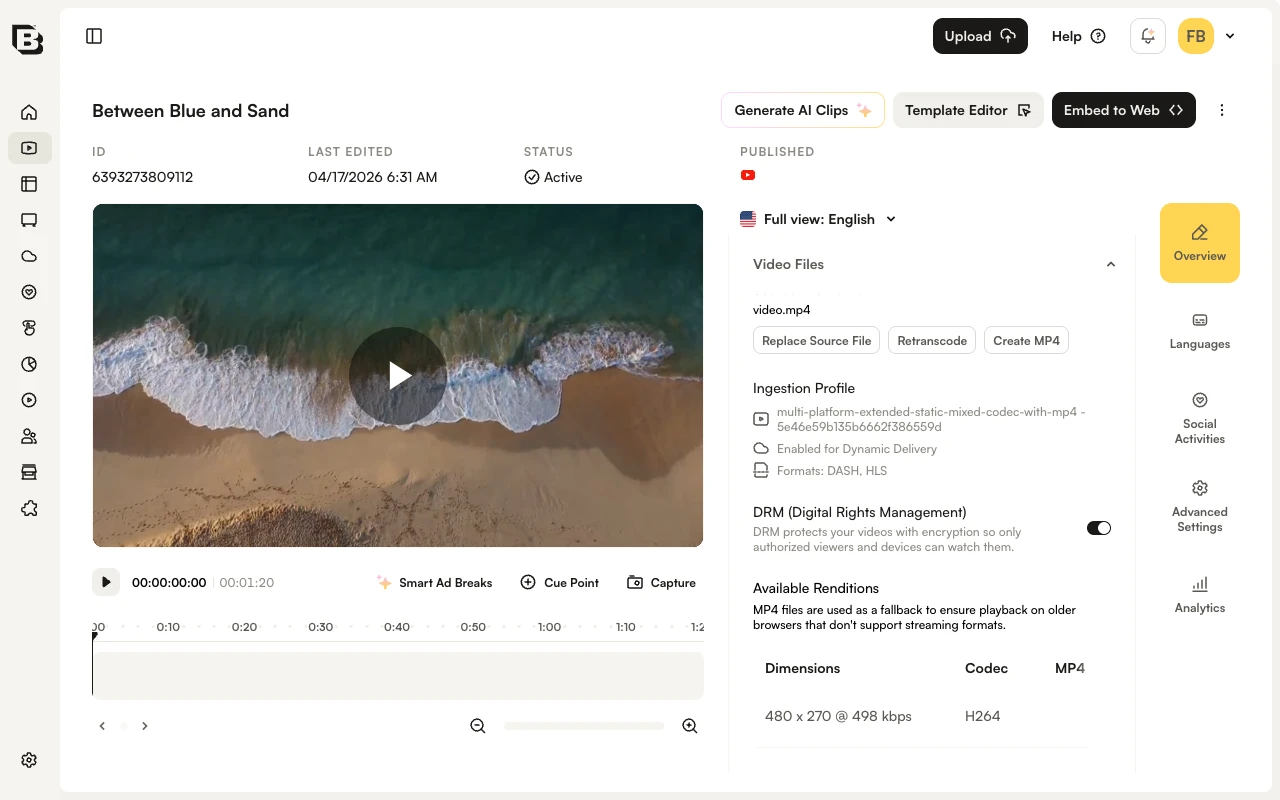
The Video Files section (on the Overview tab) displays the:
- Source file name
- Ingest profile that was used (for videos uploaded or retranscoded after Nov. 16, 2022)
- Transcoding technology that was used
- Details on the video renditions that were created
It also provides the ability to:
- Replace the Video Source File
- Retranscode the Video
- Create MP4 renditions
To download a rendition, right-click the format link for the rendition. Note that only MP4 renditions can be downloaded.
Media Sharing
When enabled for the account, the Media Sharing section lists the affiliate accounts the video has been shared to (if any). For more information on media sharing, see Sharing Videos to Other Accounts.
Audio Tracks
Audio track information is displayed on the Languages tab. For information on adding additional audio tracks to a video, see Adding Audio Tracks to Videos.
Thumbnails
The Thumbnails section (on the Overview tab) displays the poster and thumbnail images for the video. Poster and thumbnail images are created automatically by taking a snapshot from the source video at the midway point. If you don't like the default images that were captured, you can capture new images or upload other images to use as the poster and thumbnail. Landscape, Portrait, and Ultrawide images must be manually uploaded.