
Organizing Videos Using Folders
Folders created inside the Media module help you organize videos by subject, author, product, region, or any other grouping that fits your workflow. In accounts with hundreds or thousands of videos, folders make content easier to find and manage. Folders appear in the Folders panel on the left side of the module, and the video count for each folder is displayed next to the folder name.
Use the panel toggle at the top-left of the page to hide or show the Folders panel.
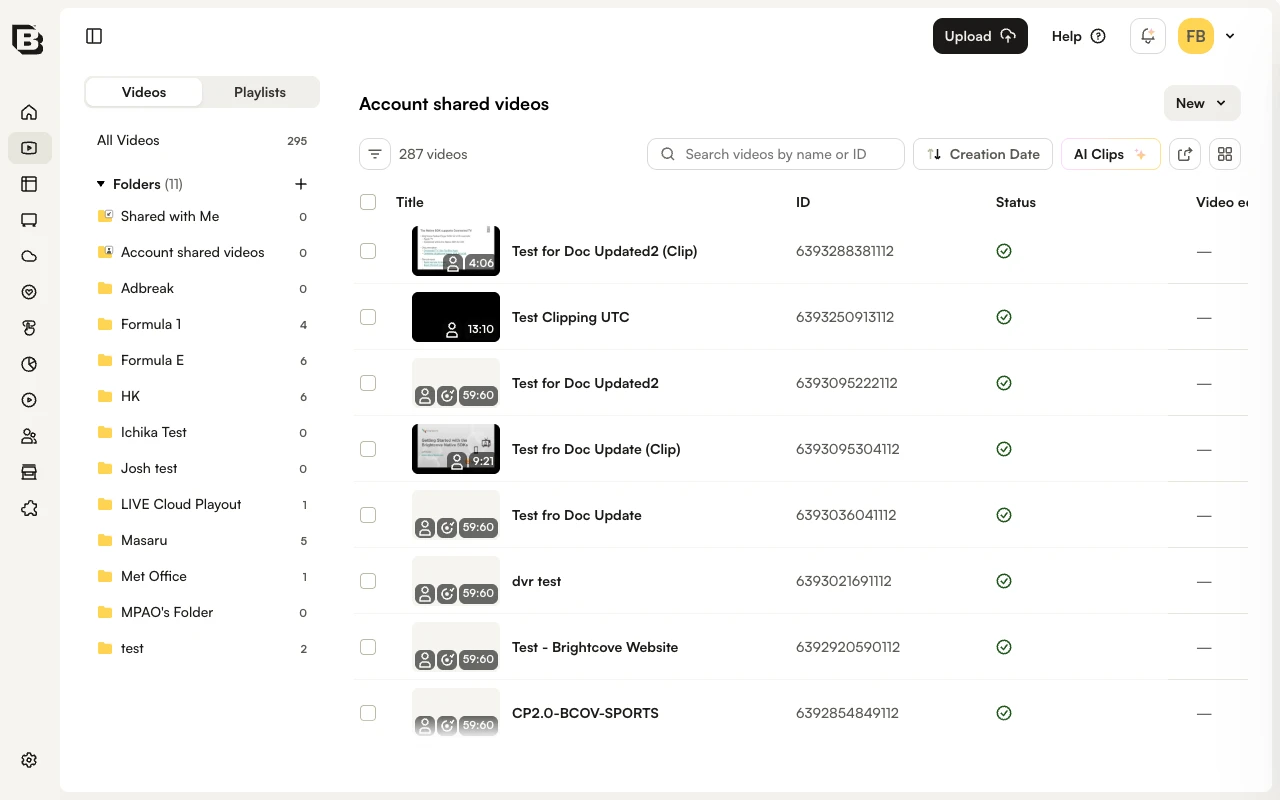
Creating folders
To create a new folder:
- Open the Media module.
- In the Folders panel, click the + icon next to the Folders heading. The New Folder dialog opens.
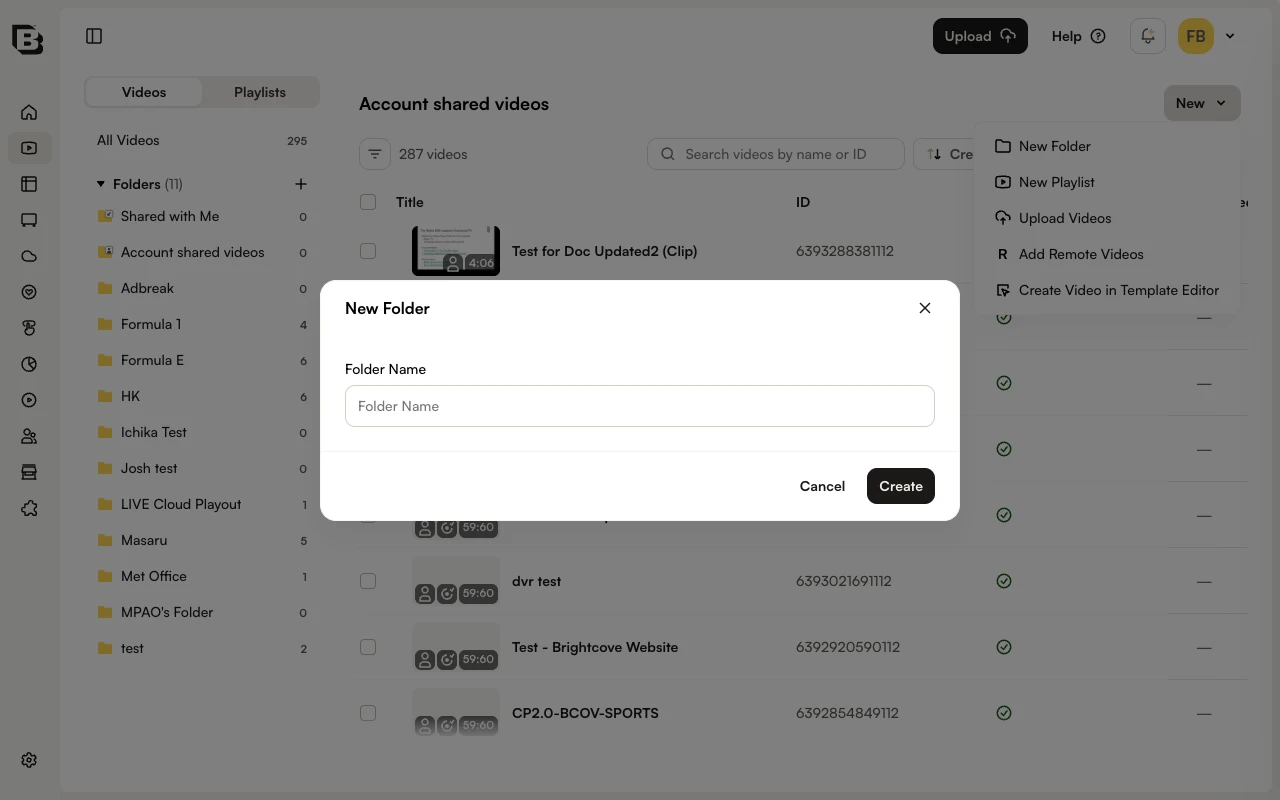
- Enter a Folder Name using these guidelines and click Create:
- Name is limited to 100 characters
- Folder names must be unique within an account
- Illegal character:
/
Adding videos to folders
Videos can be added to a folder in two ways:
- Move multiple videos at once using the bulk-action bar
- Set the Folder field in the video's Information accordion
Moving multiple videos to a folder
- Open the Media module.
- Click All Videos in the Folders panel to display every video in the account.
- Select the checkbox next to each video you want to move. The bulk-action bar appears at the bottom of the page.
- On the bulk-action bar, click Move.
- Select the destination folder and click Move.
Assigning a folder from the video details page
- Open the Media module and click a video title to open the video details page.
- On the Overview tab, expand the Information accordion.
- Select a Folder from the dropdown. Changes save automatically.
Viewing videos in a folder
Click a folder name in the Folders panel to filter the list to only that folder's videos. The heading above the list updates to show the folder name, and the count shows how many videos it contains.
Removing videos from folders
Remove multiple videos at once using the bulk-action bar, or remove a single video by clearing the Folder field in the Information accordion.
Removing multiple videos from a folder
- In the Folders panel, click the folder.
- Select the checkboxes next to the videos you want to remove.
- On the bulk-action bar, click Move and choose another folder, or move the videos to All Videos to unassign them.
Clearing the folder on a single video
- Open the video details page.
- On the Overview tab, expand the Information accordion.
- Clear the Folder value (or select a different folder). Changes save automatically.
Renaming and deleting folders
- In the Folders panel, hover the folder and open its three-dot menu.
- Select Rename or Delete.