
Changing a Video in a Player Without Changing the Embed Code
When you publish a video using the Media module, the embed code contains the video ID of the video to publish. If you need to change the video that's published, the embed code will need to be changed. In some organizations, there may be a separation of work roles between the video producers responsible for creating and publishing content and the web developers responsible for maintaining the web pages. In this case, changes to web pages may take hours or days to complete. With a little upfront preparation, you can easily change the video in a player without making changes to the embed code. There are two ways to do this:
Using a video reference ID
A reference ID is a unique ID assigned by a publisher to a video. The reference ID is distinct from the video ID which is unique ID and generated by . Reference IDs are assigned to videos as part of the video properties and can be changed anytime.
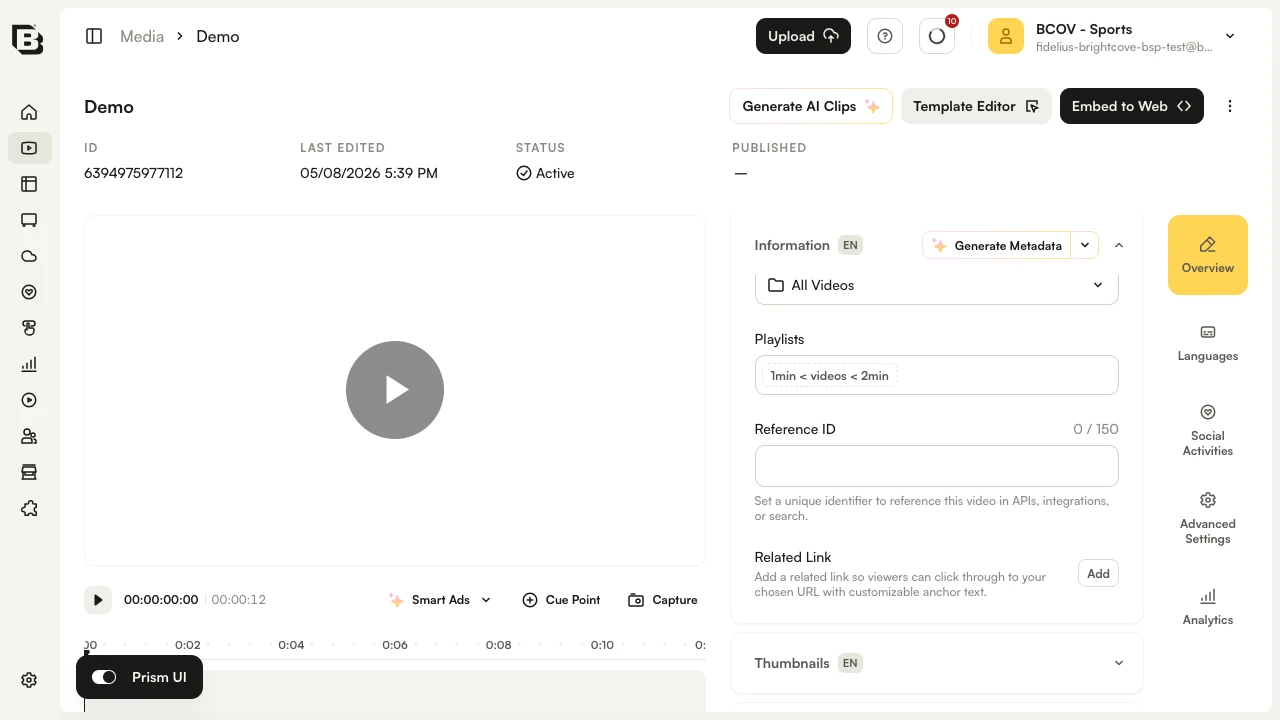
Give your video a reference ID and then change your embed code so that it refers to the video by reference ID and not by video ID.
The embed code would change from this:
<iframe src="//players.brightcove.net/1486906377/default_default/index.html?videoId=5308260054001" allowfullscreen webkitallowfullscreen mozallowfullscreen width="640" height="360"></iframe>To this:
<iframe src="//players.brightcove.net/1486906377/default_default/index.html?videoId=ref:frontpage" allowfullscreen webkitallowfullscreen mozallowfullscreen width="640" height="360"></iframe>Now, whenever you need to change the video in the player, remove the frontpage reference ID from the video and assign it to the new video you want to appear in the player.
Using a playlist player
You can also easily change the video in a player by creating and using a playlist. To do it, follow these steps:
- Open the Media module.
- At the top of the page, click Playlists, then click New > New Playlist.
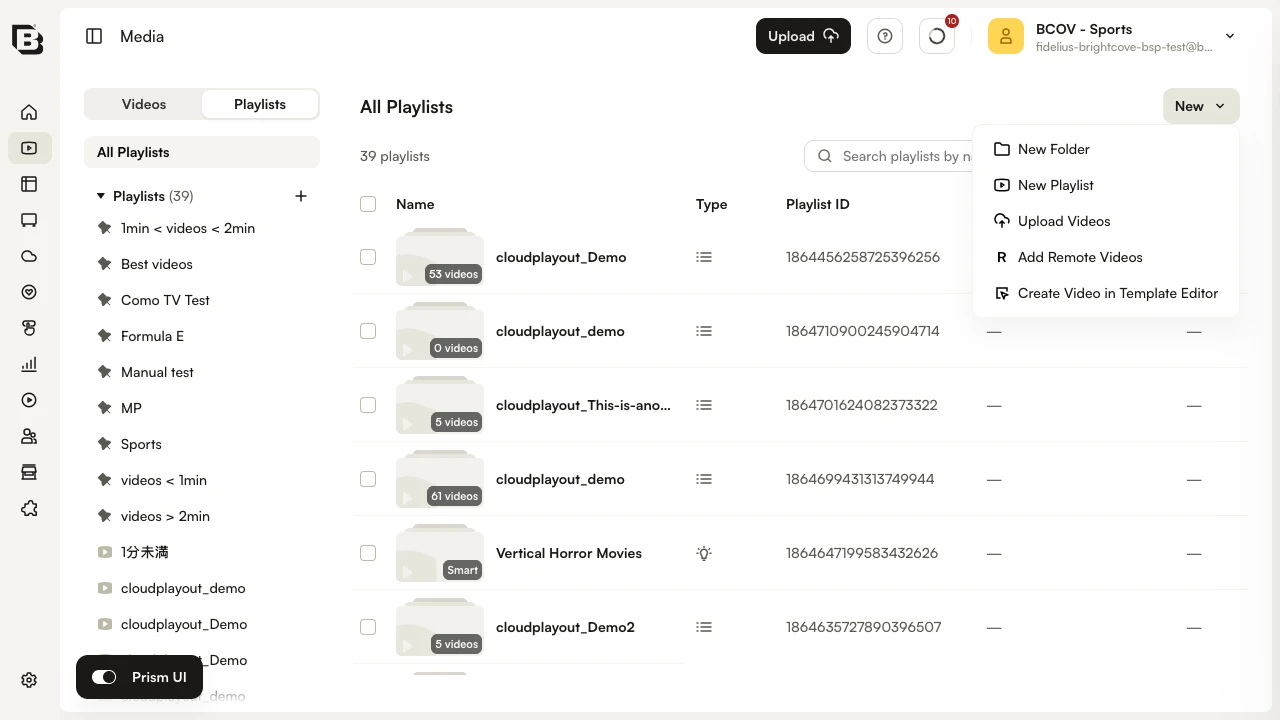
- Select Manual Playlist and click Next.
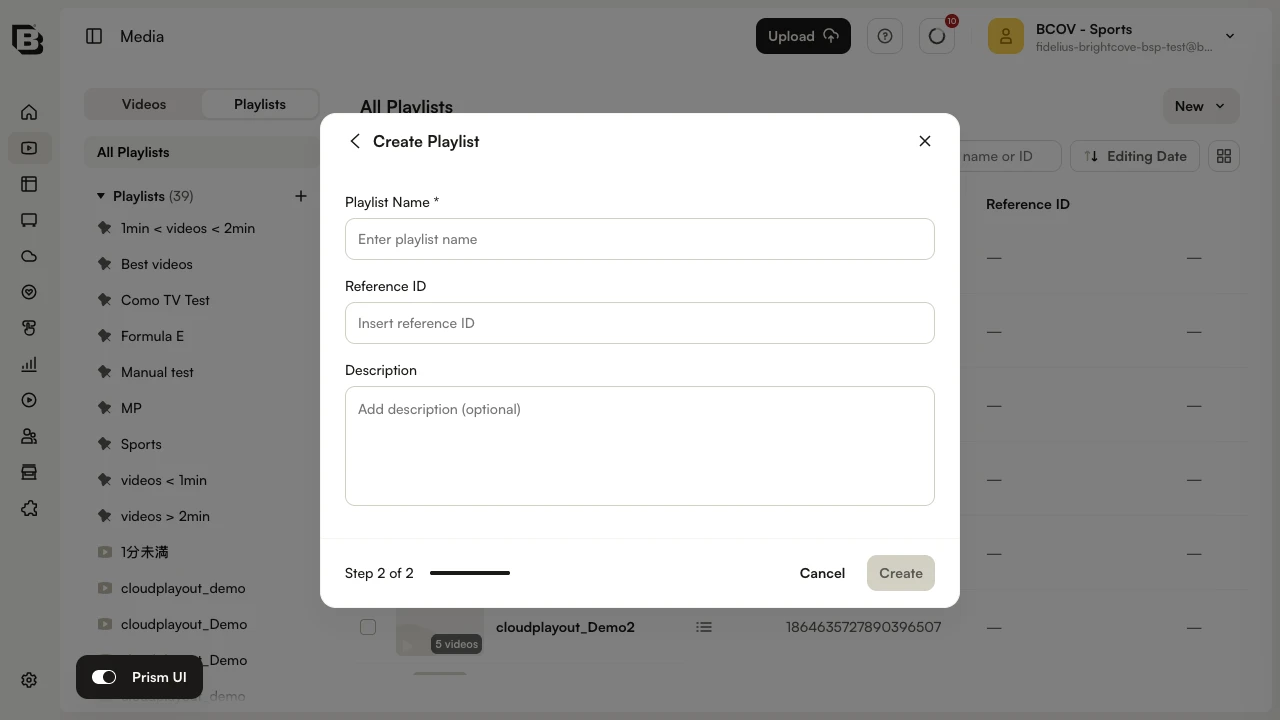
- Enter frontpage as the Playlist Name and click Create.
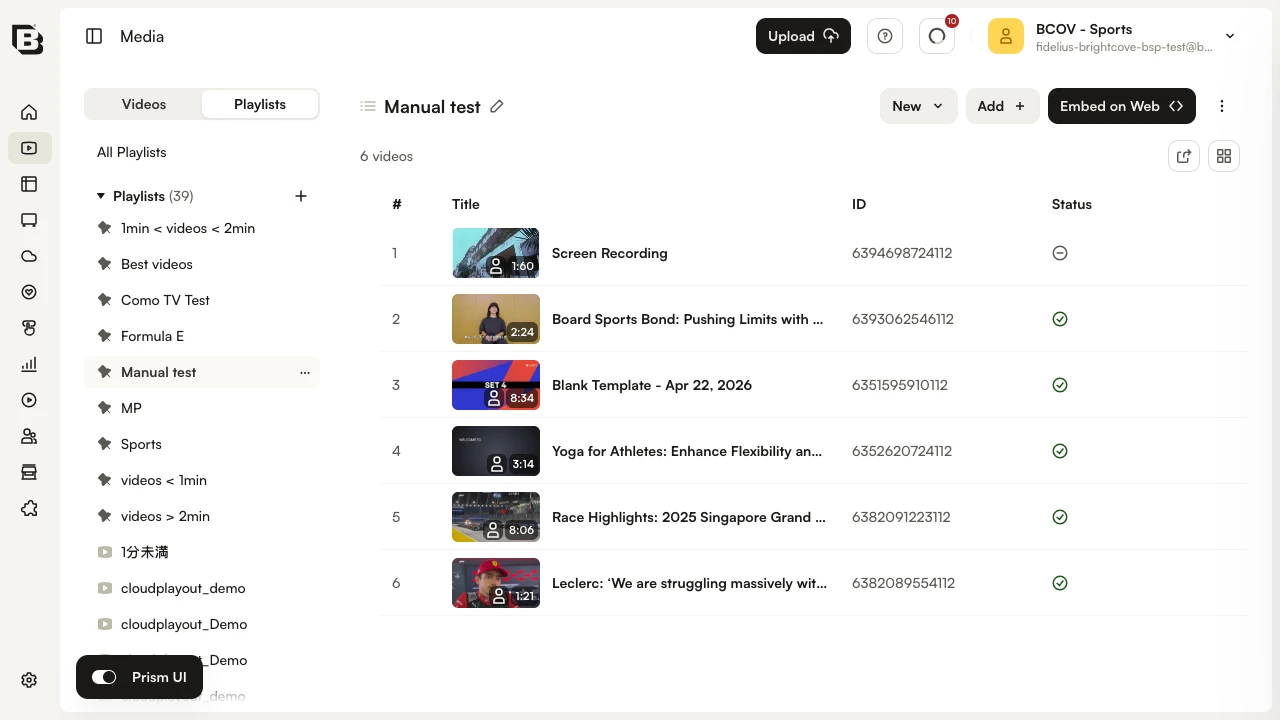
- Add a single video to the playlist.
- Publish the playlist.
Now, when the video needs to be changed, remove the existing video from the frontpage playlist and add the new video to the playlist.