The Segments feature, found in Custom Reports, allows you to create audience segments of your audience based on video viewing/engagement metrics.
Create a new segment
To create a segment, follow these steps:
Log in to Video Cloud.
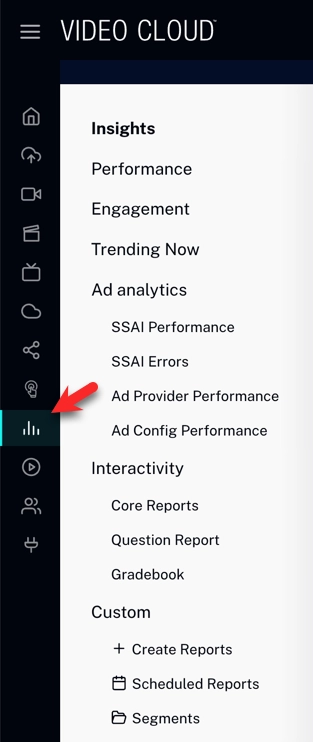
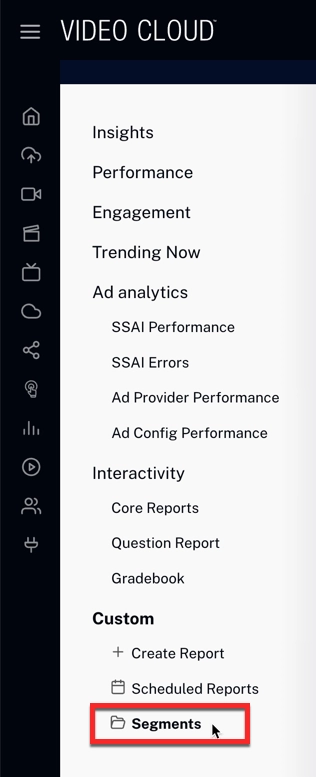
In the primary navigation, click Analytics, then click Segments.
Segments page in the Analytics module
Click New Report in the top-right corner. The New Segment dialog opens.
New Segment dialog
Enter a Segment Name.
Leave Regenerate Segments Daily enabled if you want the segment to be refreshed automatically each day. Customers in this segment are tagged in exports and reports while the toggle is on.
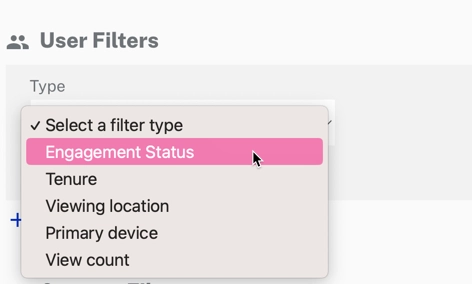
Click Add next to User Filters to narrow results based on viewer attributes. In the New User Filter dialog, choose a Type: Engagement Status, Tenure, Viewing location, Primary device, or View count.
User filter types
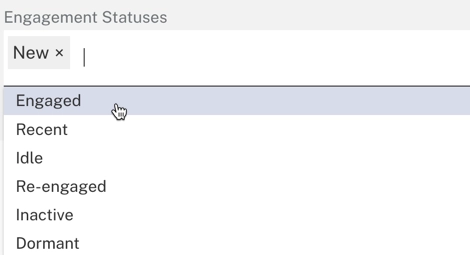
If you selected Engagement Status, pick one or more values: New, Engaged, Recent, Idle, Re-engaged, Inactive, or Dormant.
Engagement Statuses
Click Apply. Repeat to add more user filters.
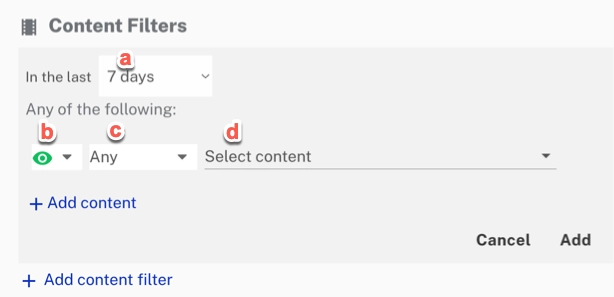
Click Add next to Content Filters to narrow results by video and watch status within a specific time period.
New Content Filter dialog
Choose a Timeframe between Last 3 days and Last 2 years.
Choose a Status: Watched, Watched happy, Watched unhappy, or Not watched.
Click Select Video to scope the filter to specific videos, or leave it on Any titles to include the full catalog. Use Add Video to pick more videos.
Click Apply. Repeat to add more content filters.
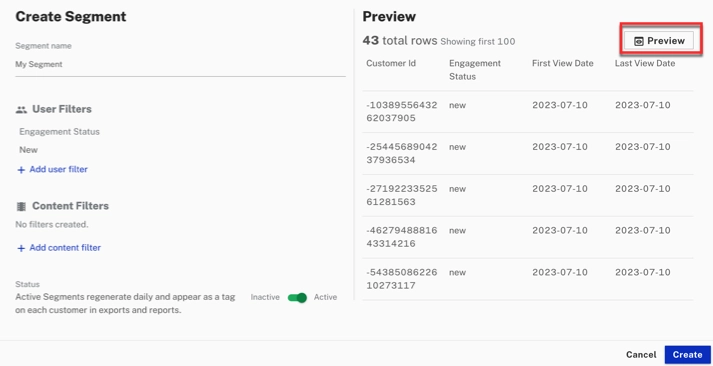
Click Preview in the right pane to see the total rows and a sample of customer IDs that match.
Report preview with total rows
Click Create. The first report for the segment is queued immediately.
Generate a report for an existing segment
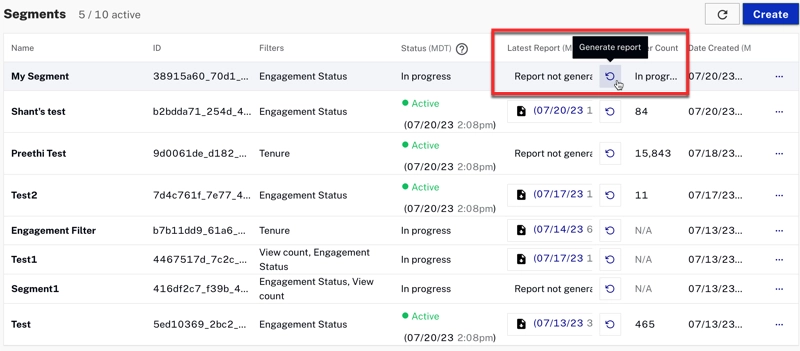
On the Segments page, hover over the row of the segment you want to refresh and click the three-dot menu at the end of the row. Then click Generate Report.
Generate Report action in the row menu
The row's Last Report cell switches to Generating... Click the refresh icon to update the status.
When the report finishes, the Last Report cell shows a timestamp. Open the row's three-dot menu and click Download Report to save the CSV to your computer.
Download Report option in the row menu